
How on earth do you version-control an Access app? From Final_really_fixed.accdb to a build from a commit
Final.accdb. Final2.accdb. Final2_copy.accdb. Final_really_fixed.accdb. If you've maintained an Access application for more than a few months, you've seen this folder. It looks like a mess. It's actually a version control system—the only one a single binary file allows without extra tools.
Around 2010, plenty of Access developers were asking the same question: how do you version-control an application whose forms, reports, queries and code all live in one file? That question is also where the road to Office SDK began.
How do you version a single file?
Monday morning. The invoice report is applying discounts wrong, and nobody knows since when. So you open three copies side by side and compare property sheets by eye. Meanwhile a colleague changed a form in their own copy. One of those two changes will get copied over by hand later, or it'll quietly disappear. And the release? It's whatever ACCDB happened to be on the developer's machine that day, compiled to an ACCDE—test form, stale link and half-finished module included.
That's not a discipline problem. An ACCDB is a database file, and no diff tool will tell you which object inside it changed. The difficulty is the format, not you.
There's an irony here. Many of these applications exist so that every transaction in accounting, the warehouse or the shop floor can be traced. They just can't tell you what they themselves are made of.
And there's a second one. In almost any other stack, this question was settled years ago: the code lives in Git, a build server builds it, tests run on every push, and nobody asks which copy is the real one. Access developers know that, and plenty of them have heard the verdict that tends to come with it: not real developers. We think that's unfair. The tools never put them on the same footing.
Before going further, it's worth pinning down what “version control” means, because the word carries two meanings. In a lot of Access shops it means keeping copies of the ACCDB. Everywhere else in software it means recording every change to every part separately, so you can compare, merge and roll it back. The whole story below happens in the gap between those two meanings.
What Microsoft offered, and why it wasn't enough
Let's start by giving credit where it's due. For Access 2010, Microsoft offered a free add-in called “Microsoft Access 2010 Source Code Control.” It connected Access to Visual SourceSafe, or to any other source control system that spoke MSSCCI, the common integration interface of the time. Queries, forms, reports, macros and modules could each be checked in and out on their own. Team Foundation Server could be wired into tools without Team Explorer support through its own MSSCCI provider.
What it got right: the unit of version control was the object, not the file. And checkouts kept two developers from editing the same form at once. For small teams with a central server, that locking model was the normal way to work back then. The idea that a form has a history of its own carries through every tool that came later.
Then Access 2013 shipped. Microsoft's list of discontinued features has said ever since that the Developer Source Code Control is not available as an add-in for Access 2013. In the “Replacement” column: N/A.
If you had built your development process around that integration, you lost it when you upgraded. It wasn't a broken promise in any contractual sense—Microsoft never committed to maintaining the add-in forever. It sure felt like one, though. The platform had shown that version control belonged in the workflow, and then took it away. The lesson a lot of developers drew: don't hang your development process on an add-in someone else can switch off.
From one file to source files
What remained were two methods Access has had for a long time. SaveAsText writes a form, report, query, macro or module to a text file; LoadFromText reads it back in. For years the community treated them as hidden and undocumented. Microsoft Learn now has short reference pages for both and explicitly names version control as a use case. The LoadFromText page also says the method is unsupported, though widely used by developers.
A whole generation of tools grew out of those two methods. The best known is probably msaccess-vcs-addin, Adam Waller's open-source add-in, on GitHub since 2015. It exports forms, reports, queries, modules, table data and themes as text, and it can build a complete database from them again. Ivercy, by Philipp Stiefel, carries on the integrated approach of the old Source Code Control for Access 2007 through Microsoft 365, with any MSSCCI-compatible system up to Azure DevOps Server. If you're starting out with Access and Git today, both are mature options.
Exporting, however, opens up a second misunderstanding: versioning a file is not the same as versioning a project.
SaveAsTextdoesn't cover tables, data, references or database properties. The text files alone won't give you a working application.- Every time it saves, Access rewrites values that have nothing to do with your change. Open a form, save it without touching anything, and the diff says it changed. If you strip those values out, you have to measure first which ones are truly noise.
- And the text has to go back. Change something in the sources, and you need a database that contains exactly those sources.
Our own road ran past three predecessors, and they all left traces in the SDK. DATEC Access SDK, a standalone tool, already kept Access objects as text, with a command line, MSBuild, an add-in and the .acproj project file. The build tool of Forms Object Library, a PowerShell script driven by an access-app.json description, built applications on that library from text sources. And the WklExtensions.accda add-in opened the library's designers inside Access. Exactly when each tool came about isn't something today's repositories can document. So this story is ordered by problems, not by years.
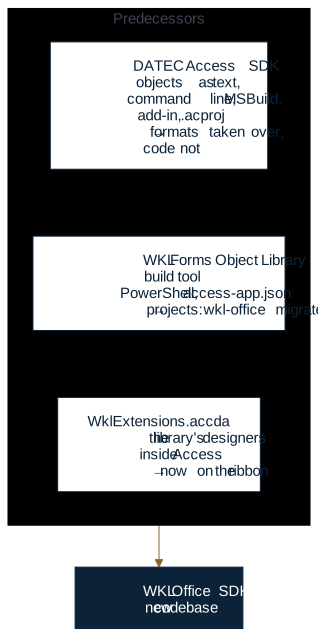
Office SDK is a new codebase. It took over the formats of DATEC Access SDK, but not its code. wkl-office migrate converts projects from both build tools in a single pass and only reads the old project. The designers that WklExtensions.accda used to open now live on the SDK's ribbon tab.
A folder shows the difference best. Before, one file per state:
\\fileserver\Access\Customers\
  Final.accdb
  Final2.accdb
  Final2_copy.accdb
  Final_really_fixed.accdb
Today, the way from this folder to a project is a single dialog in the Access add-in. You can start from the last copy in the folder, Final_really_fixed.accdb: when the open database doesn't belong to a project, the SDK's project menu offers New project from this database…, which opens this dialog. The SDK creates the project folder and exports the database into it. You don't leave Access to make the switch, and the file you started from stays exactly as it was.
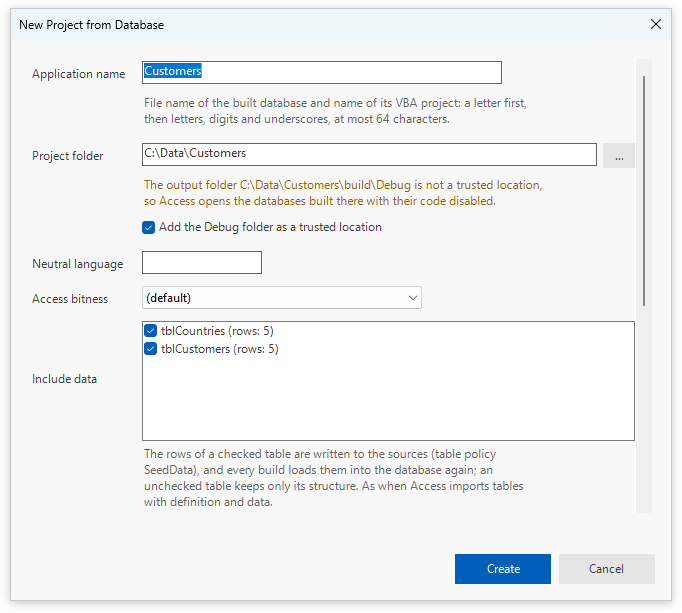
The step from the copies folder to a project. Checked tables bring their rows into the sources as seed data; leave tables that hold your users' working data, such as orders, unchecked. The note under the project folder tells you up front what you'd otherwise find out on first open: until the output folder is a trusted location, Access opens the databases built there with their code disabled.
After, one file per object: the Customers project from the tutorial after its first export.
Customers/
  Customers.acproj                   project file (MSBuild XML)
  source/
    forms/frmCustomers.form.txt      a form as text
    queries/  modules/  classes/  reports/
    tables/tblCountries.table.json   table schema
    data/tblCountries.jsonl          seed data, one line per record
    references.json
    application/properties.json
  build/                             built, never committed
    Debug/Customers.accdb
    Release/Customers.accde
Every gap in the list above has a place here: tables as a schema, seed data as lines, references and database properties in files of their own. The ACCDB under build/ isn't the original anymore; it's an output. That's the first step onto the same footing as everyone else: a repository that a reviewer, a diff tool or a build server can read.
Why Visual Studio Code?
Once an application is text, anything that understands text can read it. This is the point where an Access project joins the toolchain everybody else already uses. git log shows when a form changed. A pull request shows a query as text a reviewer can read. An editor shows code without Access having to run.
Visual Studio Code made sense because of what it already had: a Git view, a terminal, tasks and a Problems list where one click takes you to the right line. The SDK uses exactly that. wkl-office new writes .vscode/tasks.json into the project, with the tasks Build, Rebuild, Run, Run as Runtime, Check, Status, Export and Sync. Ctrl+Shift+B builds. Every task calls wkl-office with --format msbuild, so each problem comes out as one line in MSBuild compiler format, which Visual Studio Code reads out of the box.
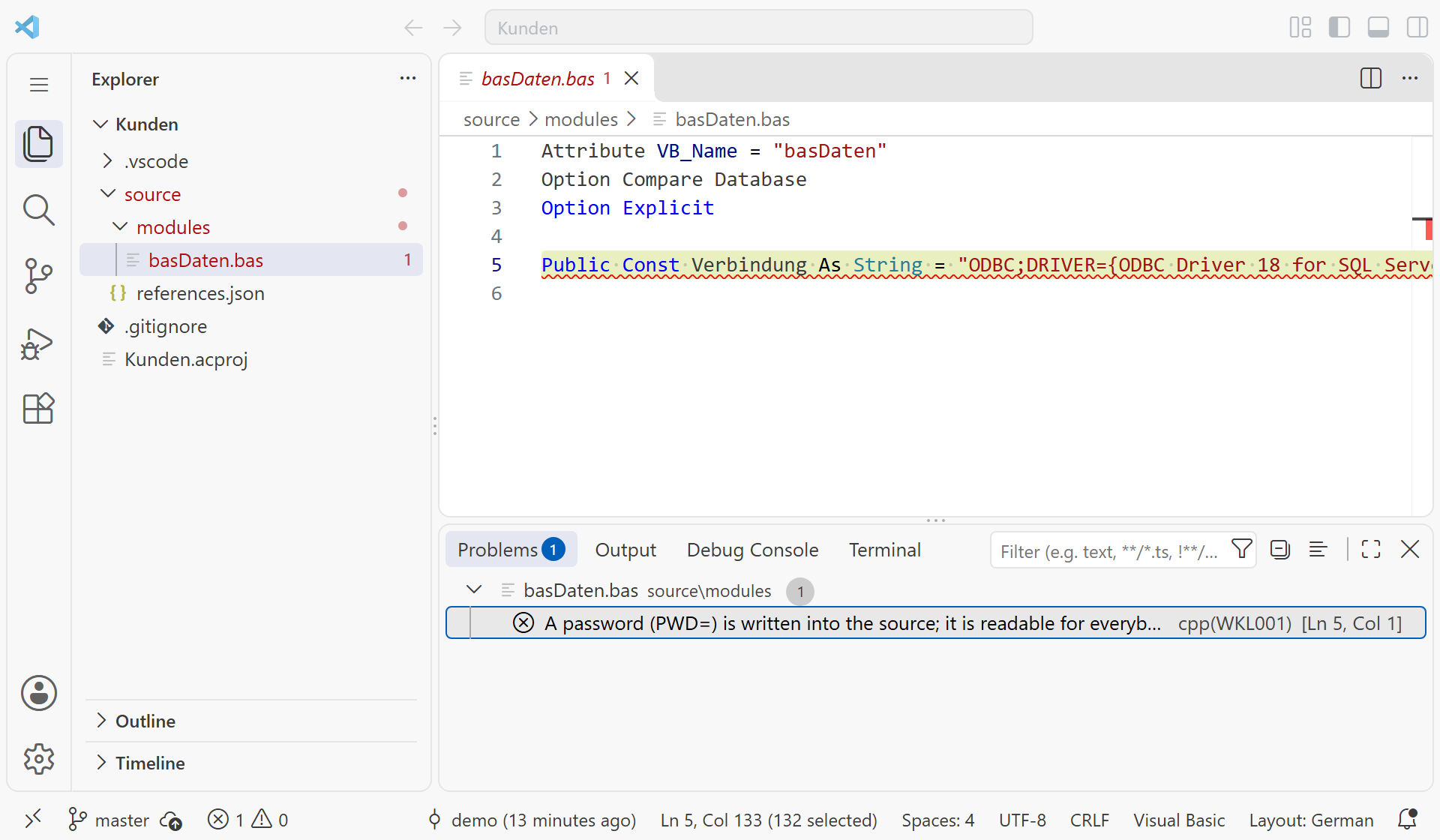
A real capture: the project created by wkl-office new, open in Visual Studio Code. The Check task wrote the line from wkl-office check --format msbuild, the Problems view lists it, and one click opens the file at the reported line.
Many of these ideas aren't ours, and we're happy to say so. The project file is MSBuild XML, as in Visual Studio, and dotnet build builds an .acproj like any other project. The Debug and Release build configurations, the split between a configuration and a publish profile, and a project's property pages all come from Visual Studio. If you've worked in Delphi, you know the same pattern from its Project Manager: a project file, configurations, a build without clicking.
What didn't carry over: you design forms and reports in Access. No text editor replaces the form designer, and the SDK doesn't try. Code you change in Visual Studio Code goes into the open database with wkl-office sync. That means there are two sides that can change, and one rule that's never broken: an object changed in Access and in the sources is never overwritten. The run stops until you decide which side wins.
Back into Access: ribbon, work area, terminal
This is where the next process failure showed up. An Access developer spends the day in the form designer and the VBA editor. If every export means switching to another program, sooner or later someone forgets. The change is back to living only in the ACCDB, and the sources are no longer the truth.
So the everyday steps moved to where the work happens. The SDK's add-in adds a Office SDK tab to the Access ribbon, with the groups Project, Sources, Build, Delivery and Tools. Below it sits the work area, an Access task pane docked at the bottom like the panel in Visual Studio Code. Its tabs are Project, Output, Problems, Changes and Terminal.
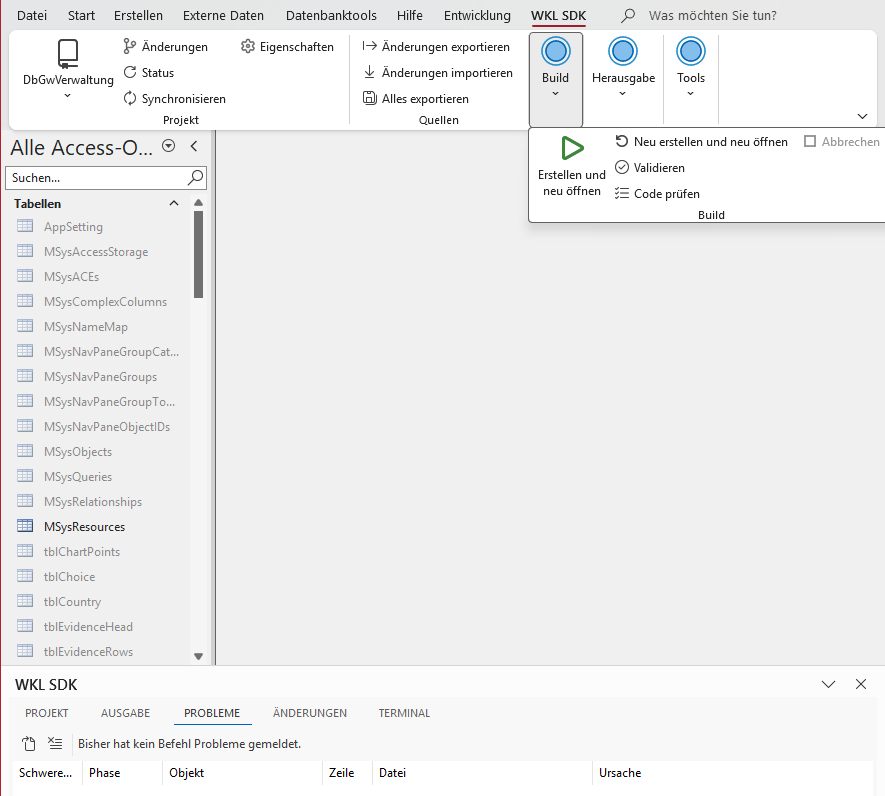
A real capture from Access, with Office set to German. What was a task in Visual Studio Code is a ribbon command here: the Office SDK tab with the Build menu open, and the work area below it with output, problems and changes.
- Changes lists every object with its state between Access and its source file, its Git status and the next step. You commit from there; pushing is a separate command.
- Terminal starts a shell in the project folder: PowerShell 7, or Windows PowerShell where that's missing. If you'd rather type, you don't have to leave Access.
- In the VBA editor, the same work area shows up as a window. Ctrl+S exports the changed objects to the sources and then checks the code.
- Build and reopen checks first and refuses as long as Access holds a change that isn't in the sources. The build runs in a separate, hidden Access, so yours stays responsive.
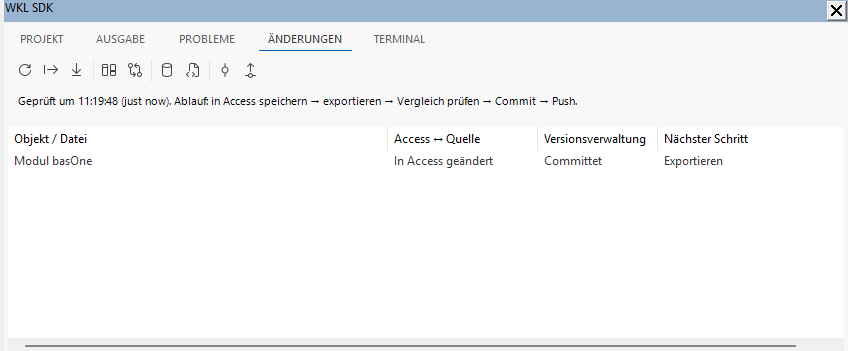
The Changes tab: the module basOne was changed in Access but hasn't been exported yet. The last column tells you what to do next.
This is the part we care about most. A lot of modernization advice for Access boils down to: leave it. Move the data to SQL Server, rebuild the front end for the web. Sometimes that's the right call. But for many teams the designer and the VBE are where the work actually happens, and a toolchain that only helps once you've left them doesn't help much. Toolchain-compatible, the way we mean it, runs the other way around. The outside world gets what it needs: text files, an MSBuild project, exit codes, a JUnit report. The developer keeps the VBE. Ctrl+S in the editor exports, and the same commands run from a terminal, from VS Code and on a build server.
That raises a fair question: isn't the SDK just another add-in someone could switch off, like Source Code Control in 2013? It is an add-in. What we built differently is where your work ends up: in plain text in your own repository, readable by Git and any diff tool, whatever reads it next.
There's no Solution Explorer in the Visual Studio sense. The overview of a project comes from the project menu with its recent projects, the Project tab of the work area and the Project Properties dialog, which is laid out like the property pages in Visual Studio. The details are in Use the Access add-in.
Project, configuration, build and delivery
“Build” means two different things, too. In many Access teams it means: take the latest file and compile it to an ACCDE. In the SDK it means: assemble the application from a defined state of the sources, step by step, the same way every time. The repository is the source of truth; ACCDB and ACCDE are build outputs and never get committed.
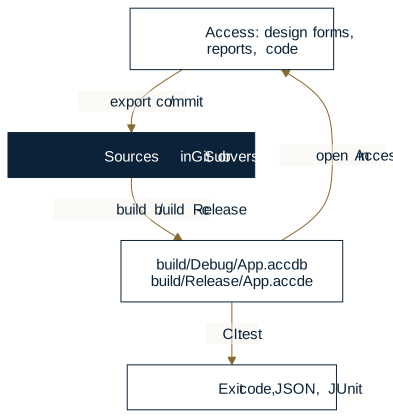
A build configuration decides how you build: whether an ACCDE comes out, which mode the application model runs in and which connection profile links the tables. A delivery profile decides what goes to whom. Visual Studio draws the same line. The concept page walks through it with two customers, each with their own database connection.
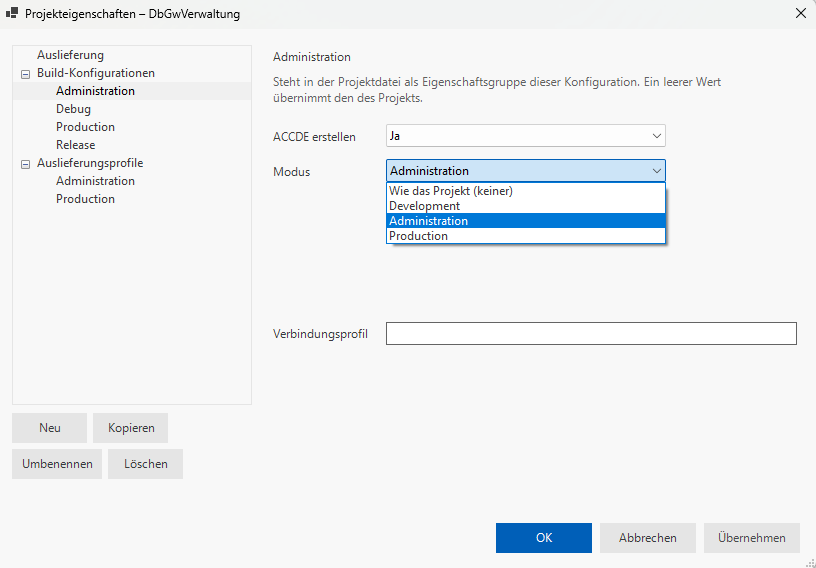
Project Properties of a real project: the build configuration Administration produces an ACCDE in Administration mode. The setting lives in the project file, so it's versioned like the code.
We'd rather be precise about what “reproducible” means here. The same sources, built with the same SDK version, the same Access, the same references and the same code page, give you the same objects, tables, data and settings. The file isn't byte-identical, though: Access assigns a new GUID to every object it loads and stores timestamps.
Three steps often get lumped together:
- Build:
wkl-office build -c Releaseproduces the ACCDE from a commit. - Prepare the delivery:
wkl-office deliverassembles, per profile, what users need: the database, a manifest with the size and SHA-256 of every file, the WKL libraries and the starter.wkl-office msiturns that into an installer package for IT. - Distribute: It isn't the SDK that gets the app onto users' PCs, it's Bootstrapper. That's a post of its own.
Being able to tell which commit became which delivery is more than tidiness. Manufacturers of software that falls within the scope of the EU Cyber Resilience Act (Regulation (EU) 2024/2847) must handle and report certain vulnerabilities and security incidents, and those reporting obligations apply from September 11, 2026. Whether an Access application is in scope, and who counts as its manufacturer, depends on the case: on whether it's made available on the market in the course of a commercial activity, and on the supplier's role. What the regulation asks of you in that case is on the page Publisher obligations.
Tests that run without anyone clicking
For a long time, “tested” meant: open the app, click around, nothing crashed. That beats nothing, but you can't repeat it. And nobody is going to click through everything again at 2 a.m. before a release.
The SDK flips the roles. PowerShell starts and evaluates, VBA drives. The project file names a test function that returns the names of the test procedures. A test procedure is a public Sub in a standard module: it opens forms with DoCmd.OpenForm, calls the app's commands and checks results with WklTest.Check. Before every MsgBox, the app asks WklTest.Answer. Outside a test run the answer is empty, and the dialog shows up as usual.
wkl-office test builds the project and runs each test procedure on its own in a hidden Access, against a copy of the database:
wkl-office test Orders.acproj
wkl-office test Orders.acproj -c Release -t accde --json
Exit code 0 means everything passed; 15 means a check failed, 13 that a procedure ran past the time limit, 16 that Access ended mid-run. Next to it sits a JUnit report that any common CI server can read.
None of this is new outside Access. A .NET or Java team gets the same from dotnet test or Maven: tests the build server runs, an exit code, a report the server can display. Jenkins, GitLab and Azure Pipelines all read JUnit XML. Inside the VBA world, people have been closing that gap for years. Rubberduck, a free, GPL-licensed add-in for the VBA editor, brings unit tests, inspections and refactorings into the editor. AccUnit, also GPL, can start test runs automatically for CI. And on the Access forums, teams describe building ACCDE files in GitHub Actions and Azure Pipelines, with the same constraints we ran into: a trusted location for the build folder and a runner that isn't a service. What wkl-office test adds is less a new idea than one chain from the same project file the ribbon and VS Code use: build from source, run every procedure in a hidden Access against a copy, return an exit code and a JUnit report.
Here's what that buys you, using the example from the SDK documentation. Say someone tidies up the order-delete routine before a release. The “Delete order?” prompt still appears, but the answer no longer matters. Clicking through won't catch it: whoever clicks answers Yes, and what should be deleted gets deleted. Nobody clicks No. The test does. It answers No and then checks that order 42 is still there:
OK   Orders_Total: total of two lines
FAIL Orders_DeleteAsks: order 42 kept after No :: order 42 was deleted
1 OK, 1 FAIL (2 test procedures)
Exit code 15. In a pipeline that runs the tests before wkl-office deliver, the run stops right there, and no delivery gets built. Without the test, the first person to find out would have been a user looking for an order they had explicitly chosen to keep.
There are things test deliberately doesn't check: real keyboard and mouse interaction such as tab order, focus or drag and drop, and runs under the Access Runtime. Access also needs a signed-in Windows session. A build agent running as a service without a desktop won't build; keeping a build machine signed in is a job for your build system.
Part of the checking doesn't even need Access. wkl-office check reads the sources before Access starts. Here's what that looked like on the machine this post was written on, with a scratch project named Kunden and a module that has a password in its connection string:
> wkl-office check Kunden.acproj
error [Sources] source/modules/basDaten.bas:5: A password (PWD=) is written into the source; it is readable for everybody who reads the repository. Let the application get it at run time.
Kunden: cannot be built (1 errors).
The exit code is 2: the sources are invalid. Without that module, the same command ends with 3 there, because Access isn't installed on that machine. Both are answers a script can act on. How to set up tests is covered in Test an application.
Access, Codex, Claude Code and the next step
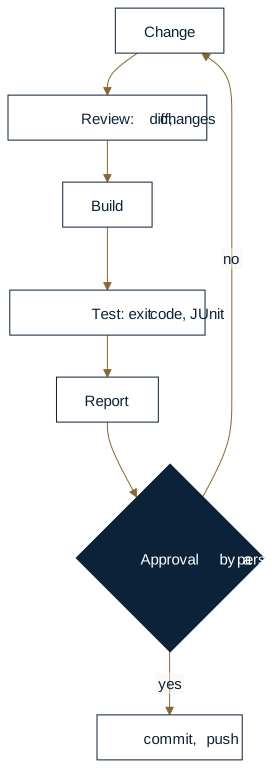
When people hear “AI support,” many picture a tool that writes VBA. The more interesting question is a different one: can a tool take part in a controlled development cycle without anyone giving up control?
- Shipped: Every SDK command runs from the command line, ends with a defined exit code and, with
--json, returns a JSON object. With--format msbuildit returns problem lines with file and line number.wkl-office commitcommits but doesn't push. - Technically feasible: Agents such as OpenAI Codex or Claude Code run commands in a project folder and read their output. So they can call
check,buildandtestand act on exit codes the way a CI server does. No special integration is needed for that, but the SDK's documentation doesn't describe it as a product feature. And since Access needs a desktop session, such an agent has to run where Access runs. - Open: An agent could also edit the text source of a form. Whether the result looks and behaves right in Access is something neither
checknor a conflict-free merge can tell you. A merged form has to be tested in Access, by a person. - Not promised: autonomous development. We're not announcing any agent feature here.
A sensible cycle looks like this, and the last step stays with a person:
Back to the question from 2010
In a project that uses the SDK, there's no Final_really_fixed.accdb anymore. The application is the repository; the ACCDB is a build output anyone can recreate from a commit. Access stays what it always was: the designer, the runtime and the home of the VBA code.
Not every limit is gone. Builds and tests need an installed Access in a signed-in session. Forms still get designed in the designer. A merge without conflicts doesn't replace a test in Access. The currently supported setup is Windows 11 with Access from Microsoft 365, 32- or 64-bit; Access 2016 through 2021 is not supported. What the current release covers is listed openly on the product page. The tutorial shows how to start with a database of your own.
Access can be the foundation of business-critical applications. The job isn't to replace it, but to build a development process around it that can be checked and repeated.
Which leaves a question we'd rather ask than answer ourselves: is it still acceptable today for the release of a business-critical Access app to depend on whichever file a developer last had open? We wouldn't accept that from any other part of the stack.
There are real reasons to say yes: an app that has run fine for fifteen years, one developer who knows every module, no budget for a rebuild. We see it differently. If you disagree, tell us why. That's exactly when we'd like to hear from you.
Is your Access app still handed around as a file, and can you not answer “Which version is the customer running?” with a commit? Then the first step is a conversation about one of your apps: how it’s built, tested, and shipped today, and whether working from source and builds fits it. It doesn’t commit you to Office SDK.