
Forms Object Library
The controls you know from DevExpress and Telerik—now in your Access forms
Data grid, tree list, Gantt chart, ribbon, and more: bound like an Access control and set up in a designer with live preview. The same controls ship for .NET WinForms—modernize Access today, move to .NET tomorrow.

The challenge
DevExpress and Telerik set the bar for .NET controls: a huge catalog, solid support, and customers who renew year after year. For Access and VBA, neither offers anything. Your Access applications are stuck with text boxes, combo boxes, and subforms—and look dated next to the rest of Office.
If you use those suites in .NET, you know the other side: about $1,000 per developer per year, watermarks and nag dialogs in your app when a subscription lapses, heavy packages to ship, and switching away costs many times the license price.
The solution
The Forms Object Library brings the controls of modern business software to Access forms as ActiveX and to .NET as native WinForms controls: same look, same behavior, same designers, same API.
Getting them into your application:
- Install them for your Windows user—no admin rights needed. The Bootstrapper ships them to your users.
- Insert a control, set its record source, and fine-tune it in the designer with live preview.
- Ship your ACCDE as usual—or bind the same controls in your .NET app through BindingSource.
- Bound like an Access control: a table, query, or SQL statement as the record source; in .NET, BindingSource and DataBindings. No proprietary data layer to lock you in.
- One library for Access and .NET: modernize your Access application today and move to .NET on your schedule—with the same controls, the same API, and the same look.
- Your users never see a license message: no activation, no telemetry, no hardware binding, and no license check on your users' PCs (WKL-LIC/1).
- Fast with large data: in server mode, the grid reads only the rows on screen, with filtering and sorting, and scrolls through a million rows.
- The look of current Office: light, dark, and high-contrast themes; UI text in five languages.
- Stable from release to release: every release goes through a release candidate and automated acceptance on real Access, with evidence and an SBOM; earlier versions stay installed side by side.
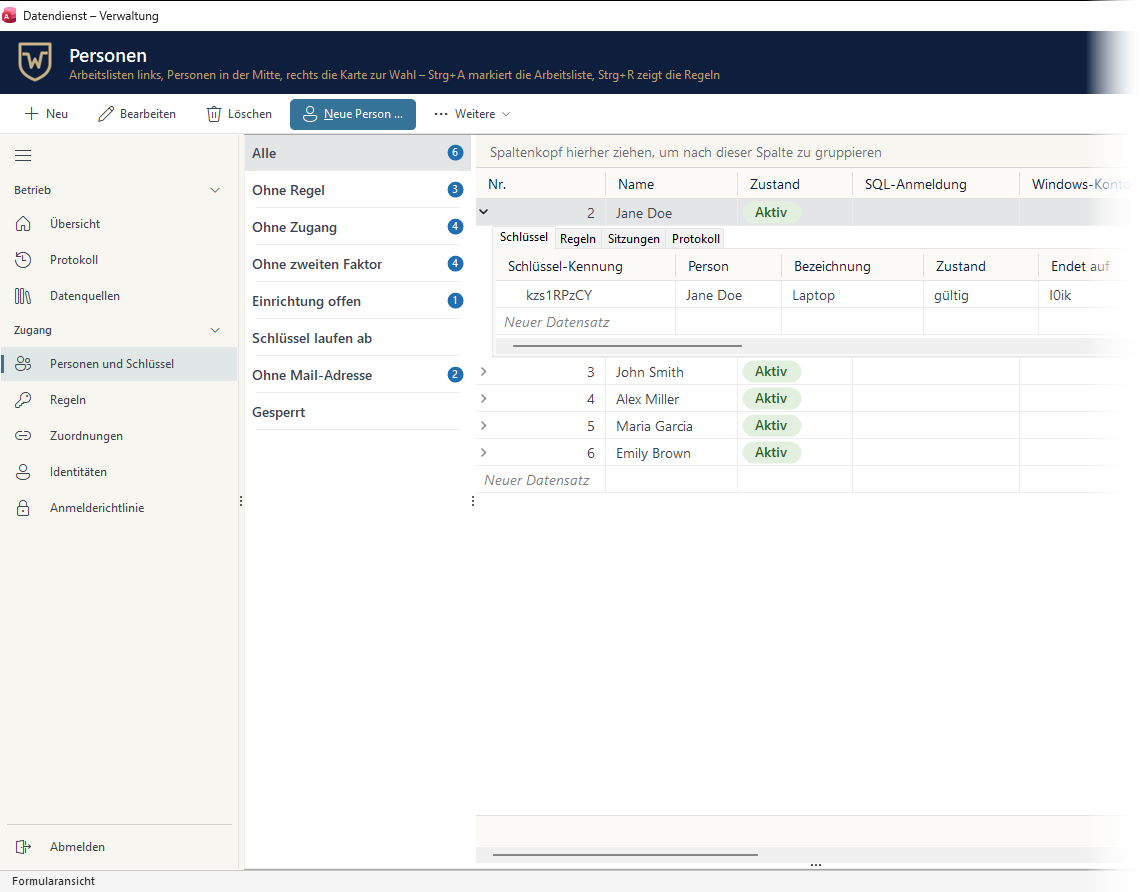
What an Access application built with Forms Object Library looks like
The Data Gateway administration is an Access database: a command bar, a navigation pane, work lists with counts, and a data grid that expands each person to show their keys, rules, sessions, and log.
Features
- Data views: grid with bands, format rules, grouping, totals, filtering, search, and detail views; tree list, tree view, Gantt chart, chart, map, property grid
- Data editors: button edit, spin edit, toggle switch, token box, validator
- Navigation and commands: ribbon with designer, nav pane, nav bar, action bar, context menus
- Layout: dock layout, splitter, drawer; status: KPI card, gauge, badge, toast, status label
- Media and application: barcode, image, application shell, link manager, timer list, HTTP requests, dialogs
- Designers with live preview, in the Access designer and in your .NET IDE
- In ACCDB, ACCDE, and the Access Runtime, 32- and 64-bit; native WinForms controls for .NET
Detail views without a subform
In the grid designer, you choose which records expand under a record: one tab per source, linked by a key field and a detail field, just like a subform.

Symbols from Windows and from your own database
The tree list shows a symbol for each node, taken from the database’s image gallery or from Windows. The preview on the right shows the list exactly as it will appear on the form.

One ribbon for the whole application
You put tabs, groups, and commands together in the designer. The application ribbon applies everywhere, and a form can name a different one when it needs to.

More screens
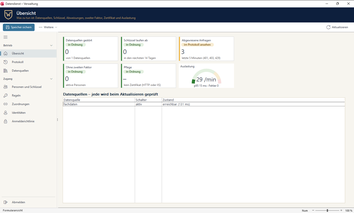
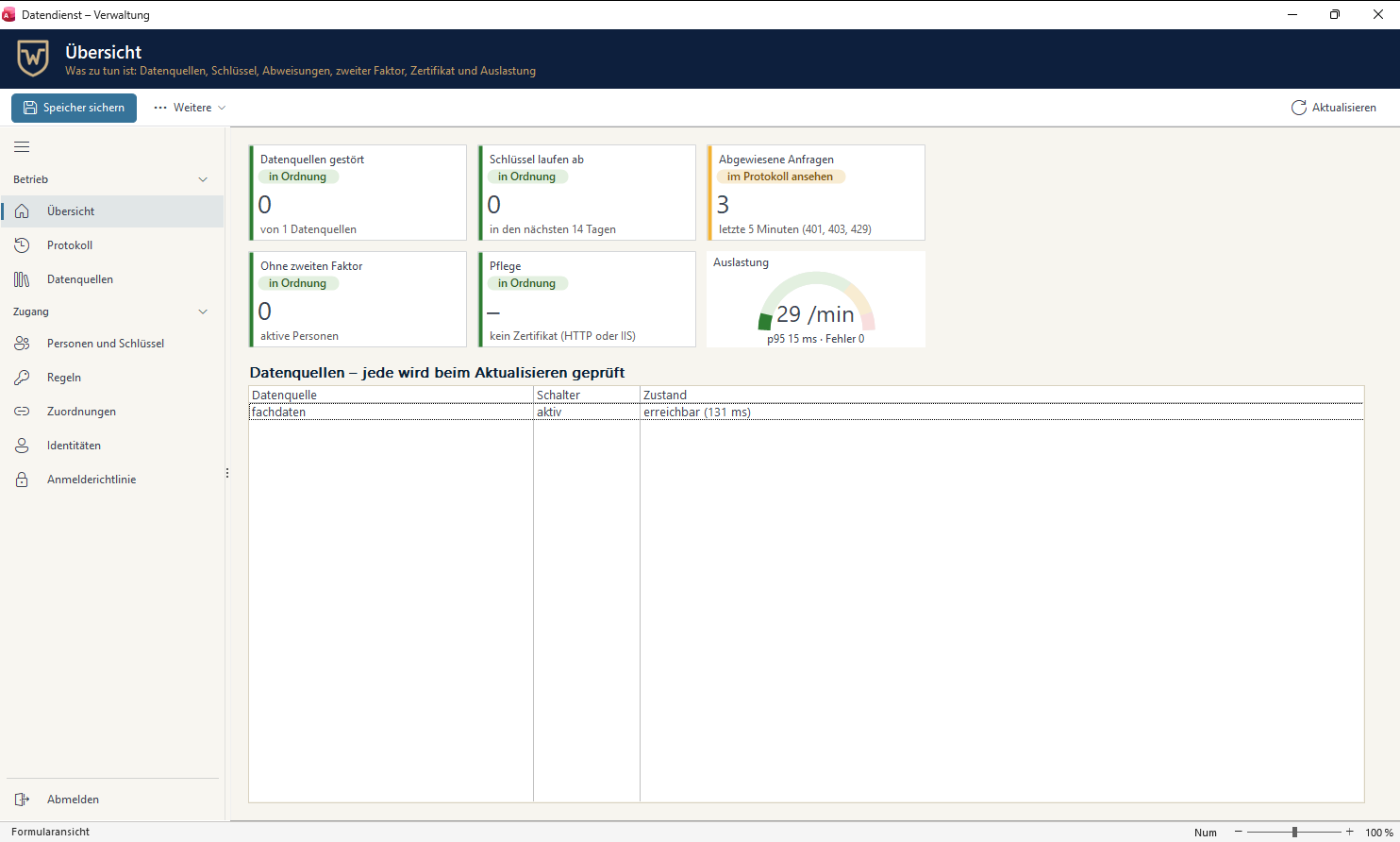
Administration overview: status tiles and a load gauge. 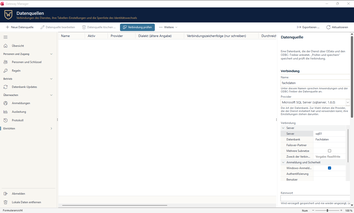
A data source in a property grid: server, database, sign-in. 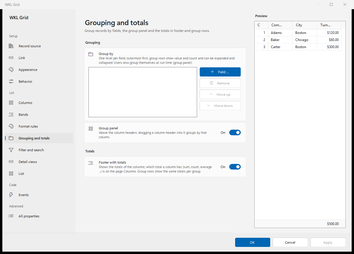
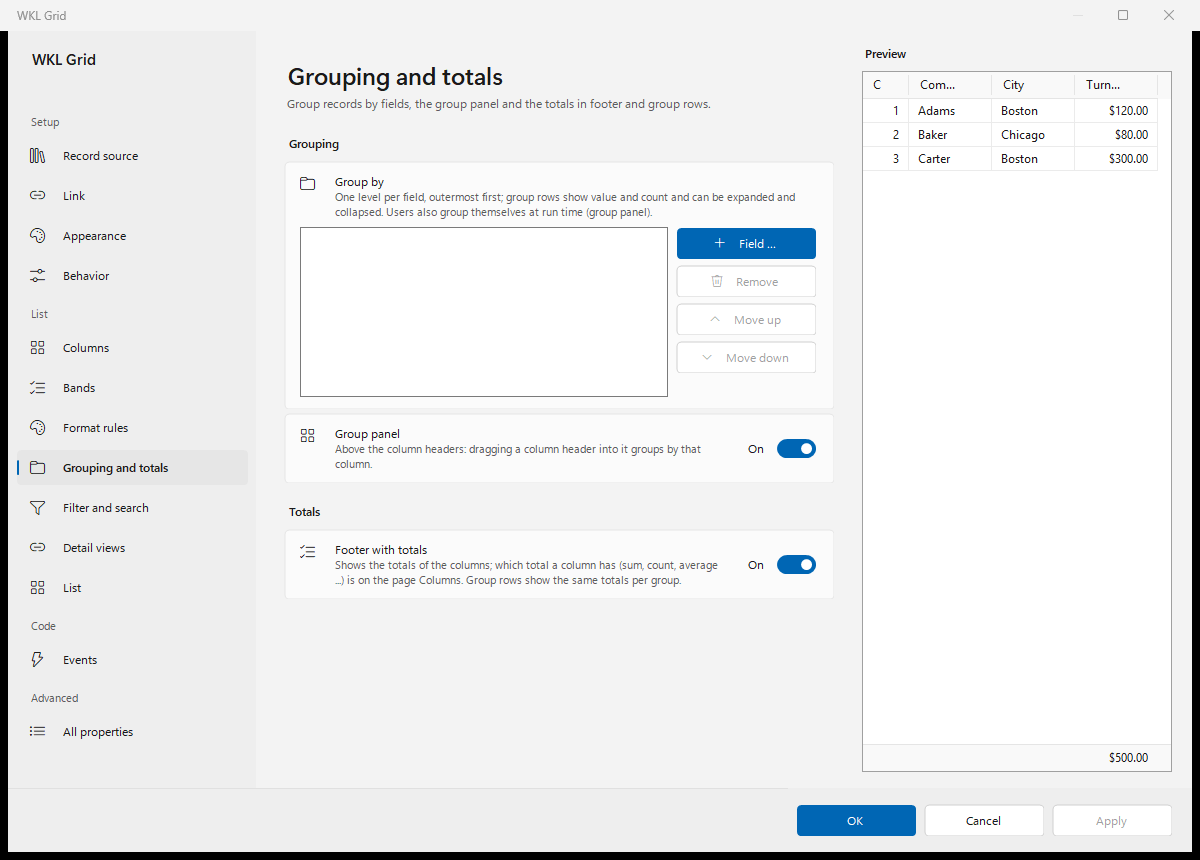
Grouping and totals: a group panel above the columns, totals in the footer. 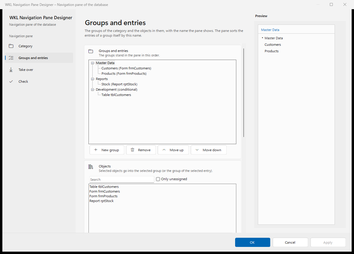
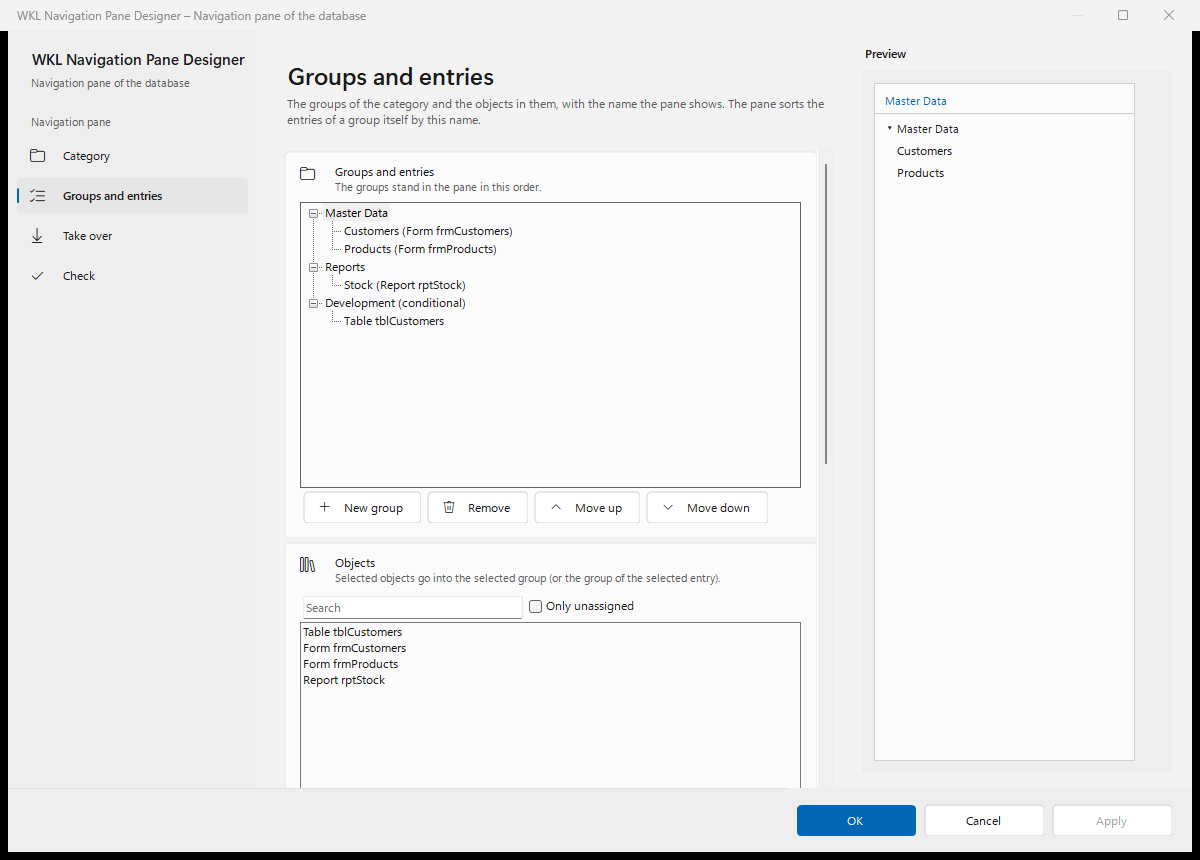
Navigation pane: categories, groups, and entries. 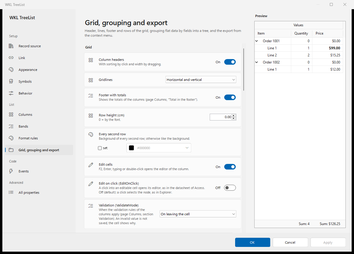
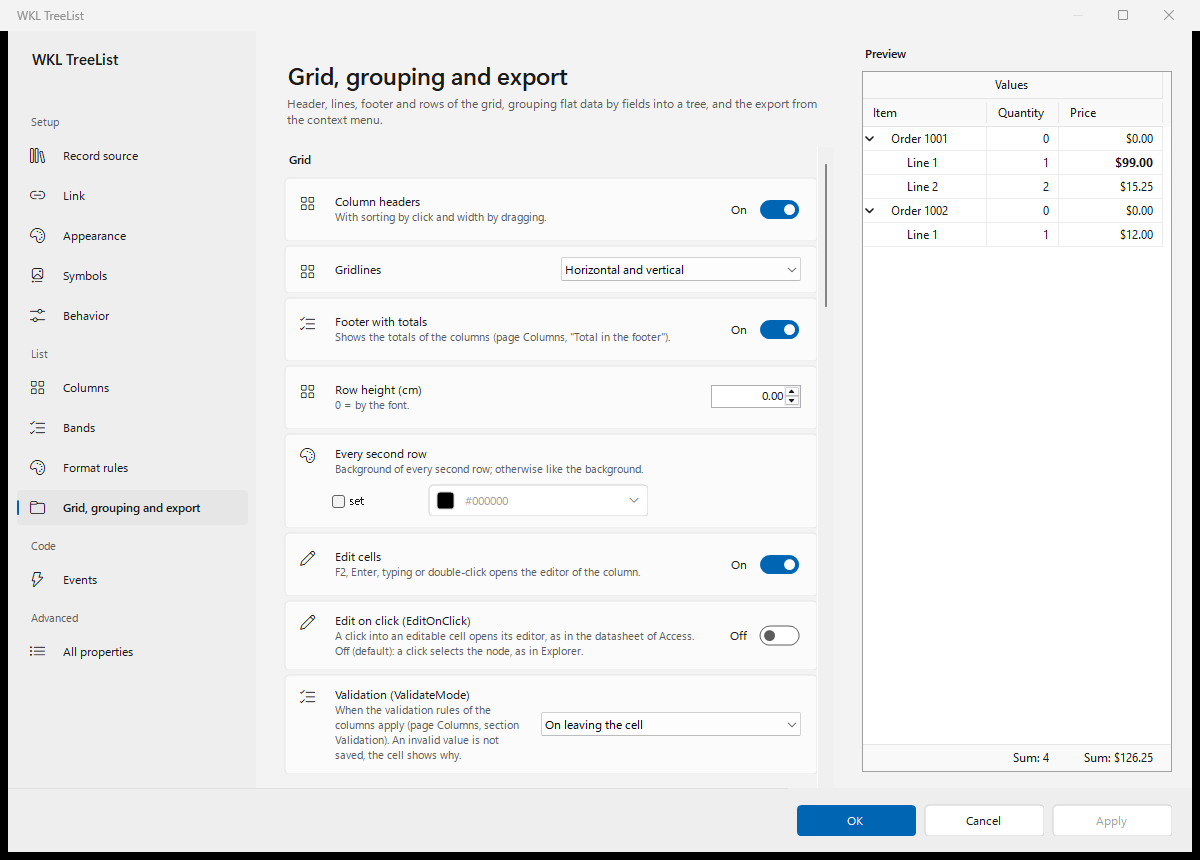
Tree list as a grid: column headers, totals, in-cell editing.

Technical details
- Requirements: Windows 10 or 11; 32-bit or 64-bit Microsoft Access from Microsoft 365 or the Access Runtime, or a .NET WinForms application; plus the .NET 10 Desktop Runtime. Technical details and installation
Frequently asked questions
Why not just use DevExpress or Telerik?
Both are excellent for .NET—but they offer nothing for Access or VBA. The Forms Object Library brings comparable controls to Access and the same ones to .NET, with no watermarks, no license checks on your users' PCs, and a light footprint to ship.
Can I move to .NET later?
Yes. The same controls are available as native WinForms controls with the same API and the same look, so your users will barely notice the switch.
What happens when my license expires?
Your application keeps running as before. The license covers the developer, never the application in your users' hands.
How do I install the controls?
For your Windows user, with no admin rights. The Bootstrapper delivers the current version to your users at every start.
How fast can a tree show my data?
A tree needs four properties to show a table. Tutorial: your first tree
Setup, examples and reference, step by step: it's all in the documentation.
Open the documentation