
Bootstrapper · for Access application publishers and IT
Deploy and auto-update your Access front end without admin rights
Save the release to the source folder once, and it's on every PC at the next start. No IT ticket, no admin rights, and a rollback if something fails.
IT deploys only the starter, and only once, as a signed MSI package. From then on, the starter installs each release in the user's profile, registers what the application needs, and keeps a record of every file it installs.
- Release in a folder
- Starter
- Every PC
Save the release to the source folder once. On the next start, the starter installs it in every user's profile.
The situation
The release is ready. Now it has to reach every PC.
Microsoft recommends that each user work with their own copy of the front end—the part of an Access application that holds the forms, reports, and code and connects to the shared data. It's the right way to split an application. But it also means every release has to replace the copy on every PC—usually by hand, through a logon script, or with a homegrown version check: a version table in the back end and a few lines of VBA that copy the new front end over on startup. That works as long as nothing goes wrong.
- After the swap, the application doesn't open for everyone—and every failed start turns into a support call. One user had the old copy open while it was being replaced. On the next machine, the components are registered in the wrong bitness (32- or 64-bit). On the third, the folder isn't a trusted location, so Access won't run the application's code.
- Who's on which version? When copies go out by hand or through a logon script, nobody knows for sure: nothing records what was installed where. That's also why a bad release can't simply be rolled back.
- Every release means waiting on IT and admin rights. Not least for the ODBC drivers, data sources, and .NET runtime the application depends on.
Why not MSI or ClickOnce?
Per-user like ClickOnce, traceable like MSI
It's the first thing IT asks—and a fair question. A Windows Installer package is traceable, can be deployed centrally, and uninstalls cleanly. But according to Microsoft, it needs administrative permissions (source), so every release becomes a new package. ClickOnce installs per user without admin rights, but it publishes .NET applications and Office solutions—not Access applications.
The starter takes per-user installation without admin rights from ClickOnce, and from Windows Installer a record of every file, rollback on failure, and removal under "Apps." Compare it with MSI, ClickOnce, Web Platform Installer, and logon scripts
With the starter
Something wrong with the release? Your users keep working.
Shipping a release to 200 users means saving it to the source folder once. Everyone who opens the application after that is working with the new one—and the previous version stays installed right next to it.
Source folder
- Release 1.4.0
You save it there once.
next start · every step logged
User's profile
- 1.4.0 – starts from now on
- 1.3.0 – stays installed
Each version gets a folder of its own. The running one is never overwritten.
If any step fails, everything is rolled back
Bad release
- Start 1.3.0 from the settings window
until the fixed release is ready
- Someone in accounting still has the old copy open? No problem: the new release goes into a folder of its own.
- Share down, work goes on. The installed version starts, and the update waits until the next start.
- Who's on which version? The one in the source folder: every start checks it before the application opens. For each user, every installed file and registry value is on record.
How a release reaches your users
Your next release doesn't open a single ticket with IT. The work comes down to three steps, and the second one never repeats.
- Describe the release once
- IT deploys the starter once
- Every start picks up the release
Describe the release once
Which files, which registry values, which shortcuts, and what to launch: it's all in the project file, which you maintain in Bootstrapper Manager. Add your delivery key there too, and the starter accepts only releases that carry your valid signature. After that, each new release just goes into the source folder or share.
IT deploys the starter once—never again for a new release
The project file and the starter become a signed Windows Installer package for Group Policy, Intune, or Configuration Manager. A new package is needed only when the starter or the project file changes.
Every start applies the release as a transaction
On each start, the starter checks the source folder and the prerequisites. Whatever the application needs is registered: components to match the installed Office, ODBC drivers, data sources, the .NET runtime, and the trusted location. If the PC shuts down mid-install, the install is rolled back on the next start at the latest. The starter writes only to the user's folders and the user's part of the registry—it never needs admin rights.

In the overview: what happens on a start, commands, and codes
Maintain the project file without writing JSON
In Bootstrapper Manager (formerly the Starter Configurator), an Access application for publishers, you fill in files, shortcuts, and conditions the way you'd fill in a form, preview the starter's window, do a trial run, and build the MSI package. Whether a project file is valid is up to the starter itself; Bootstrapper Manager shows each problem along with the part of the file it affects.
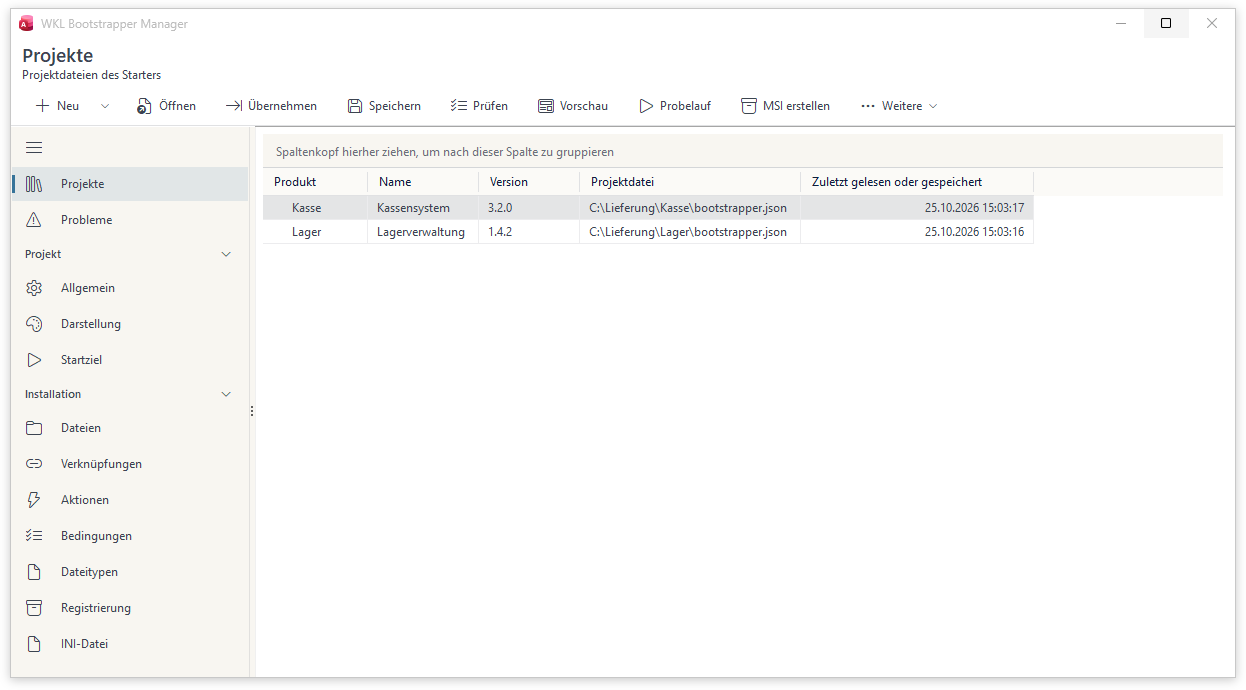
Bootstrapper Manager is installed with the Office SDK, and its interface follows your Office language: English, German, or Slovenian. Read the user guide
Status and limits
Is the starter a fit for your environment?
Released
It's a fit if your users run Windows 11 with 32-bit or 64-bit Microsoft Access from Microsoft 365, and the release sits in a folder or on a share. Check these points first:
- Windows 10, AppLocker, or Windows Defender Application Control: this release doesn't support Windows 10 or computers that restrict programs in the user profile.
- Anything that needs admin rights is still IT's job: system-wide drivers, the Access Runtime, or machine-wide registrations. The starter checks for them and reports what's missing.
- No HTTP or HTTPS downloads: the starter picks up releases from a folder or a share only.
- It deploys, it doesn't build: the application itself is built elsewhere—with the Office SDK, for example.
- One start at a time: two starters of the same user installing at the same moment don't wait for each other.
- A release's signature doesn't cover the programs run as actions.
Where to start, depending on your role
Everyone on the team starts somewhere different: the publisher with the project file, IT with the package, the application administrator with diagnostics.
- Publisher: deliver an applicationCreate a project file from templates, set the source and launch target, then check and try it—for an Access application or any other program.
- IT: roll out the starter with an MSIOnce, as a signed package—and see exactly what the starter writes on a machine.
- Application administrator: troubleshootDiagnostics, earlier versions, repair—and a page for every error code with its cause and fix.
Want to know what the starter includes and what your environment needs to bring? The product page covers features, requirements, and limits in full.
See the product page