
Data Gateway
Access, Excel, and Power BI on SQL Server—no database password on the workstation
Access, Excel, Power BI, and your own programs reach SQL Server data without any workstation reaching the database: sign-in, per-object permissions, and logging in one place.

The challenge
Whether a private laptop may see customer data, whether someone works from abroad, or whether a contractor gets two weeks of access—none of those calls can be enforced while every workstation reaches the database directly and the database password sits in the connection or the workbook.
And whoever signs off on access also wants to show who read or changed what, and when—including what was turned away.
The solution
The data service takes requests over HTTP, checks sign-in and permissions, turns them into SQL, and returns the result—in the office, working from home, or at a customer site. A database is visible from outside only under a name, such as fachdaten; only the service knows the connection. Two interfaces sit on the same catalog: OData v4 for Access, Excel, and Power BI, and a dedicated HTTP contract with JSON or XML for programs.
From an empty server to the first query in about an hour:
- Set up the service with one installer: Windows service, HTTPS certificate, firewall, and IIS in front if you want it.
- Connect a database under a name and decide who may read or change what.
- Access links tables through the OData ODBC driver; Excel and Power BI load through Power Query.
- No database connection on the workstation: Access links tables through the OData ODBC driver, Excel and Power BI load through Power Query, and the database does the filtering and sorting.
- No SQL from the caller: every name is looked up in the database's catalog and every value is bound as a parameter. Anything that isn't in the catalog doesn't exist for the caller.
- Rules set the reach: per alias, kind of object, method, and read or write—for people, Windows groups, SQL logins, and service keys.
- The person arrives in the database: under their own SQL Server login if you want, so triggers and column defaults can see who acted.
- A record of everything: every request is logged with caller, object, method, and result, including rejected ones, and every change to the administration goes into the change log.
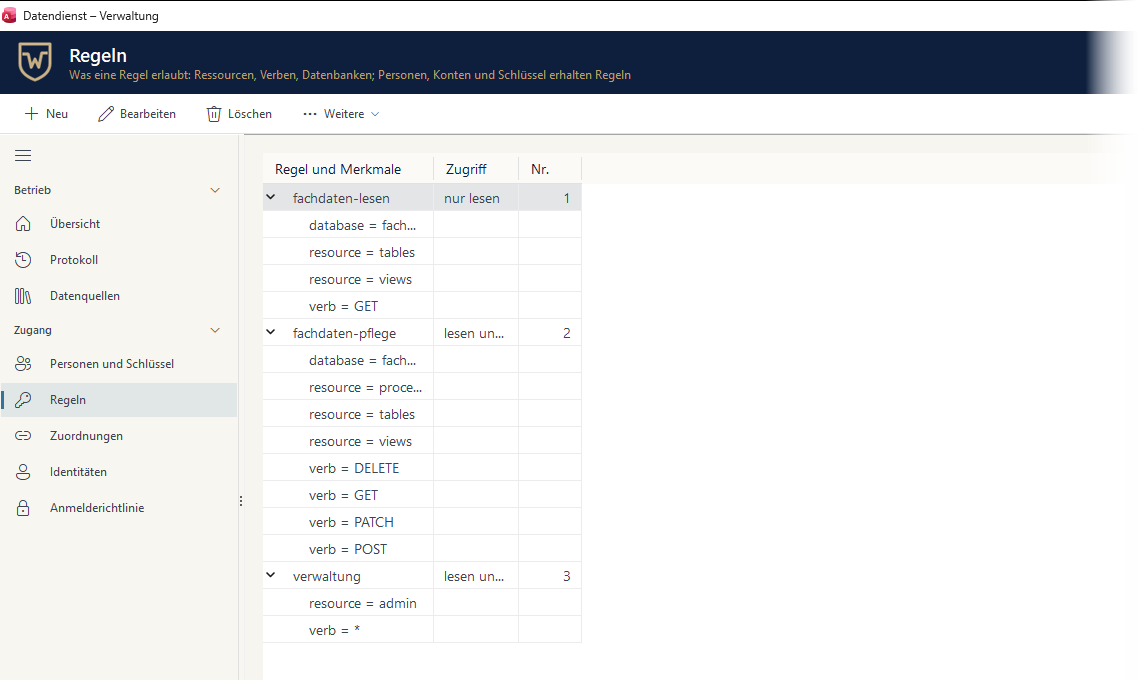
Who may read or change what – per object and method
Rules decide which tables, views, and procedures a person can reach, and whether they can only read or also change data. Anything a rule doesn’t release simply doesn’t exist for the caller.
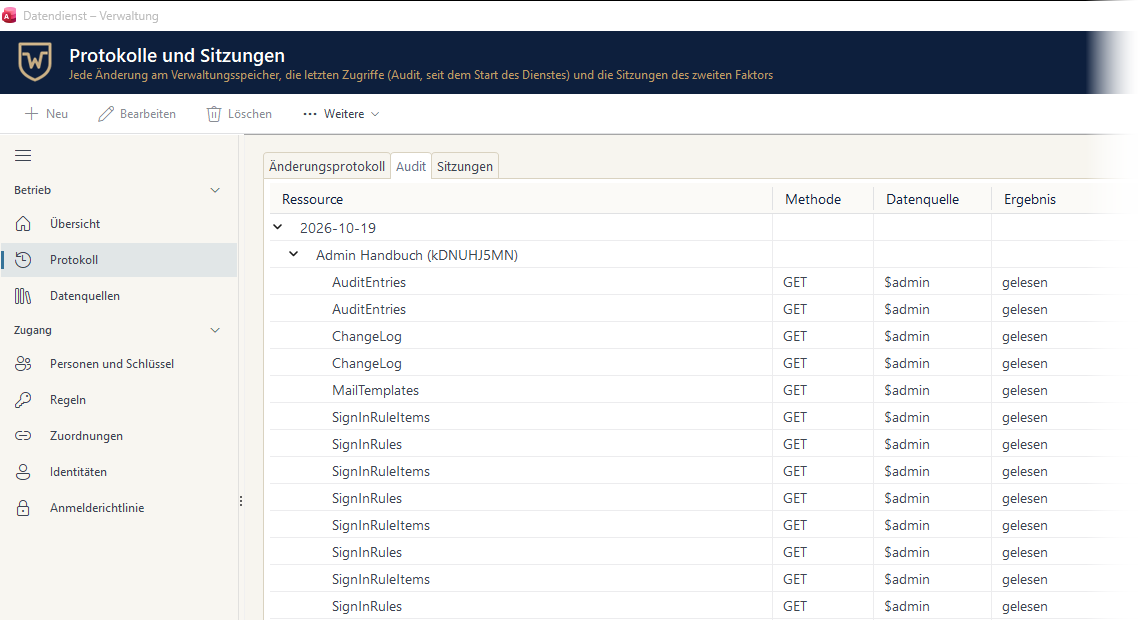
Every access is on record
The audit shows who called which resource, when, with which method, and with what result – refused requests included. Values and passwords never appear in it.
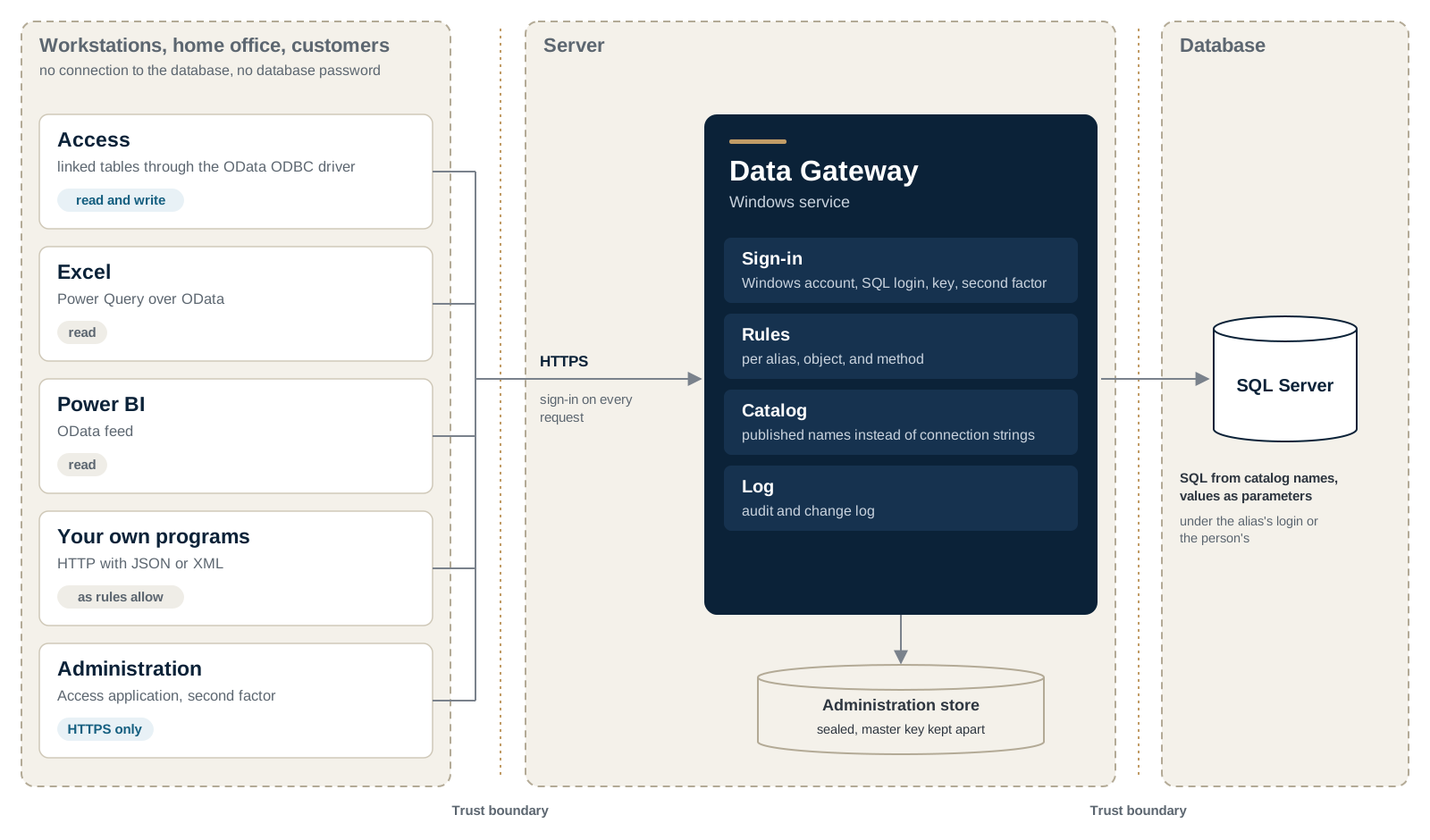
How the data flows
Workstations reach the service, never the database. The service checks every request and builds the SQL itself, under the login you set for each data source.
Features
- Sign-in with a Windows account, SQL Server login, personal key, or service key, with a second factor depending on the method and the network
- Sign-in policies by origin and country: deny or ask for a code, with exceptions that end on their own
- A key of its own for each device and purpose—restricted, time-limited, and revocable on its own, effective with the next request
- Conflicting changes are caught: with a row version or timestamp, the service never writes over someone else's change
- Sign-ins by outcome, hour, country, and network operator, and load per query shape—right in the administration app, with no tool on the server
- A single installer: Windows service, HTTPS certificate, firewall, and optionally IIS in front
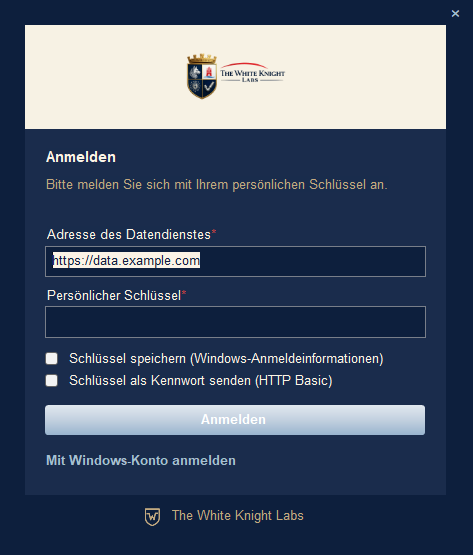
Sign in instead of a password in the connection
Instead of a database password, users sign in to the service with their personal key or their Windows account. Windows can keep the key in Credential Manager.
A second factor where you require it
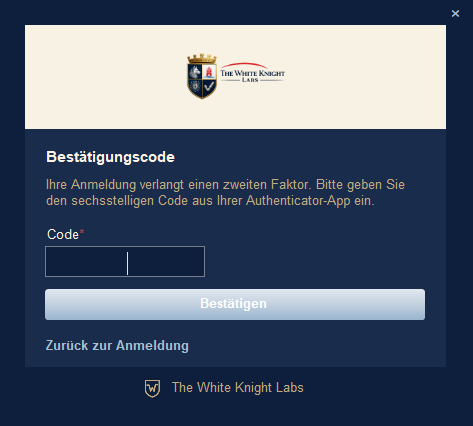
The sign-in policy decides when a confirmation code is needed – for administration, say, or for access from outside your network.
More screens
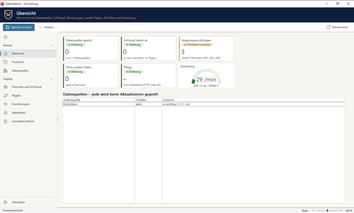
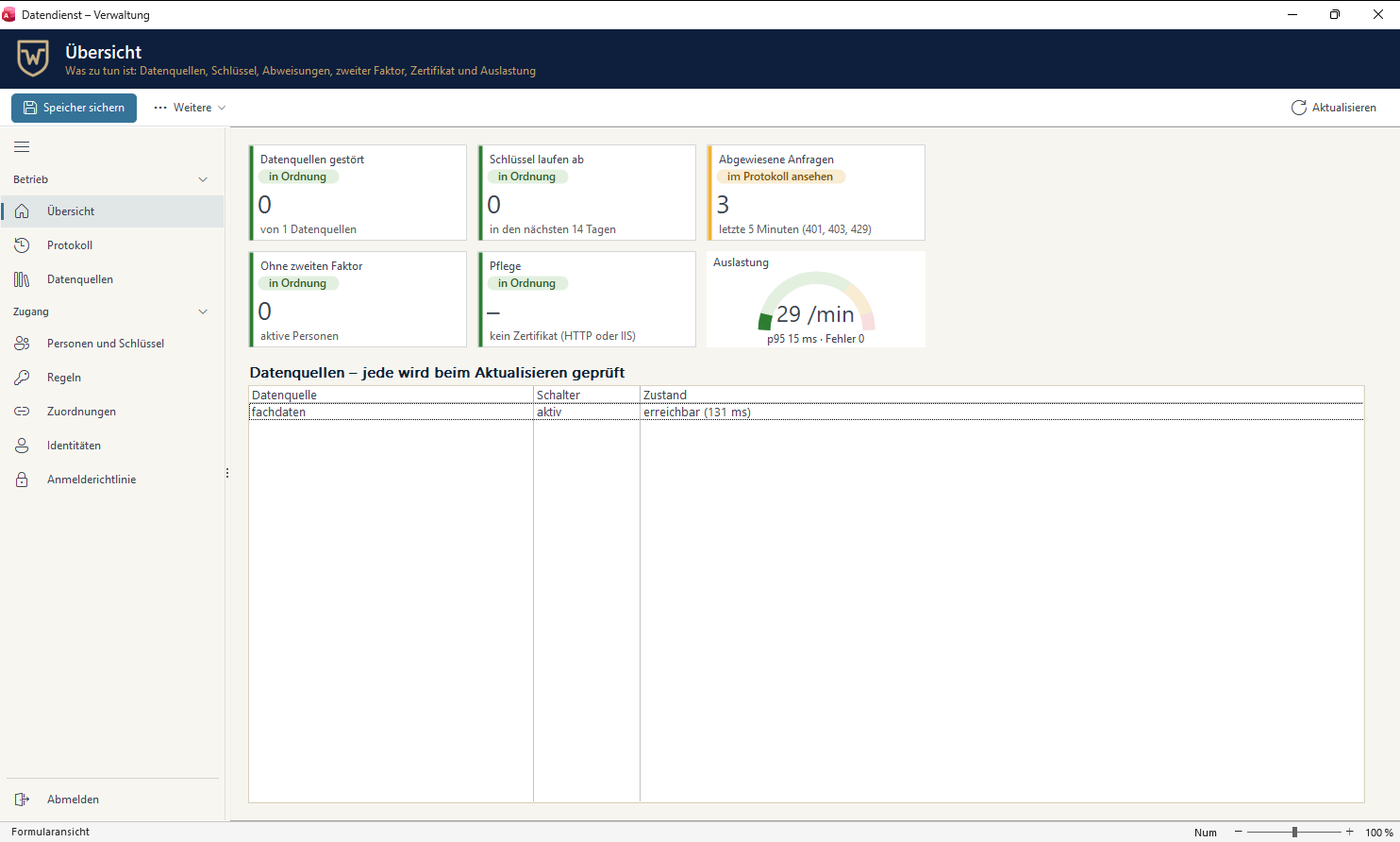
Overview: failing data sources, expiring keys, refused requests, load. 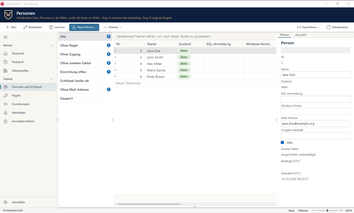
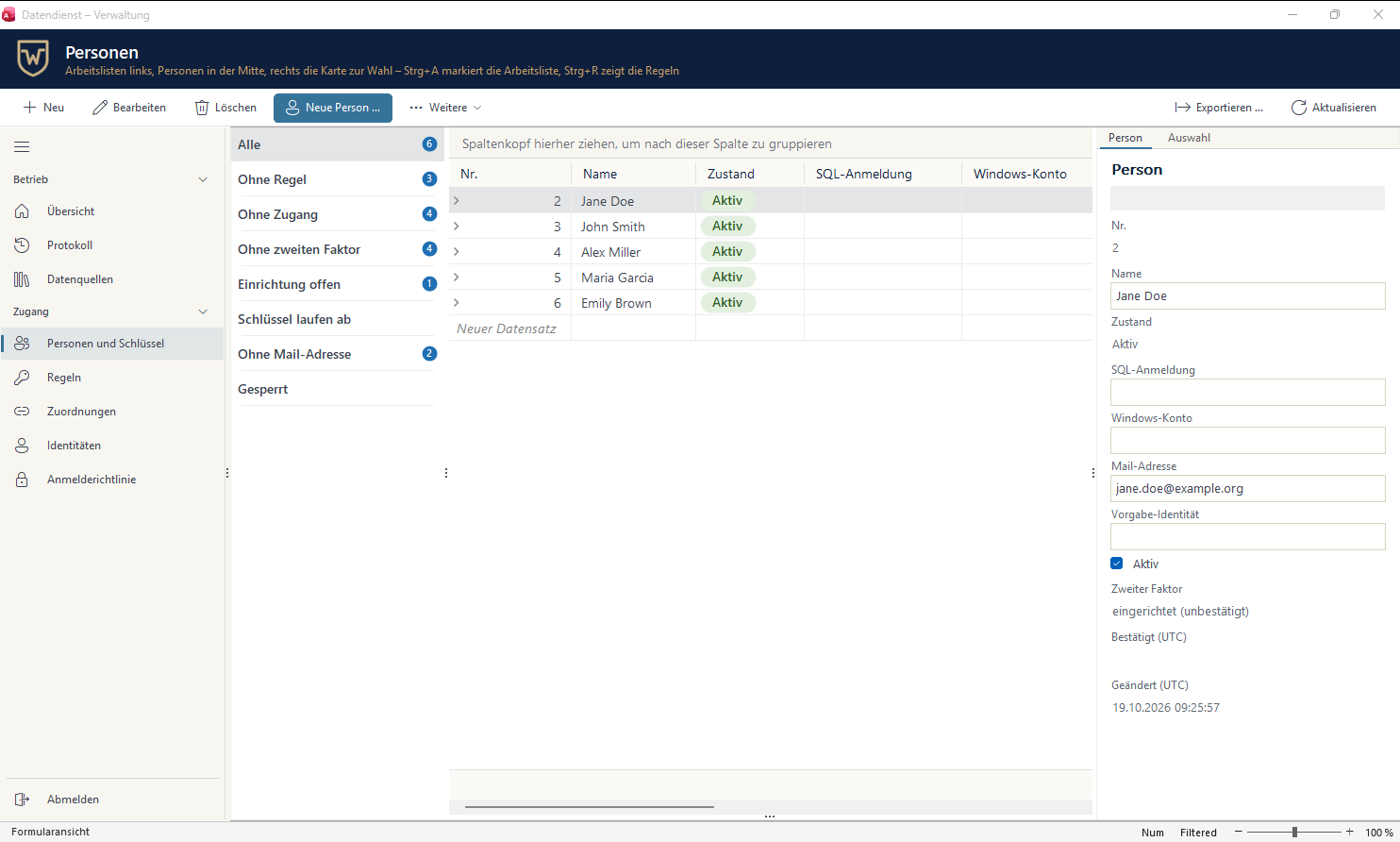
Persons with work lists and the card of the selected person. 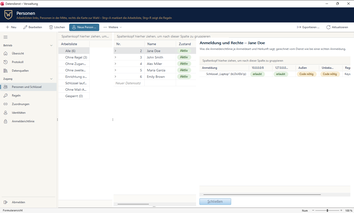
What the sign-in policy means for one person: allowed or code required, per network. 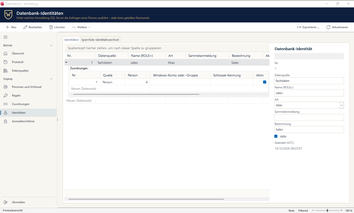
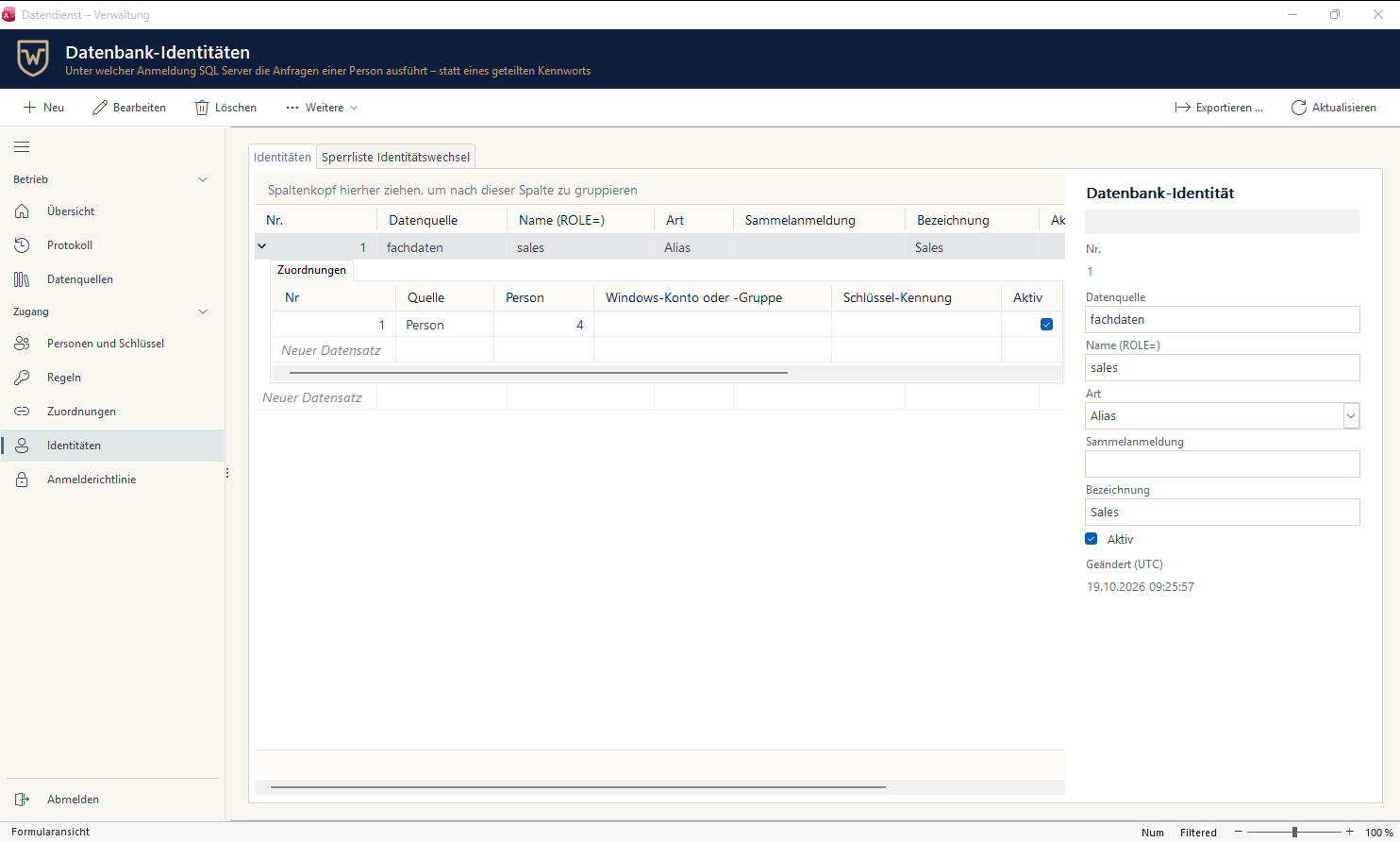
Database identities: which SQL Server login runs a person’s requests.

Technical details
- Requirements: SQL Server 2016 or later and an HTTPS certificate. Running it includes an administration store with a separately kept master key, backup, key rotation, and emergency access. The administration app runs in Access from Microsoft 365, full version or Runtime, 32-bit or 64-bit; Windows sign-in from the app uses NTLM. Technical details and requirements
Frequently asked questions
Do I need the ODBC driver for Excel or Power BI?
Power Query is all Excel and Power BI need, filtered on the service. You need the OData ODBC driver to link tables in Access. Do I need the driver?
How do we handle personal devices and people working abroad?
With sign-in rules: the service tells how someone signs in and from where, and based on that it asks for a second factor, refuses, or allows an exception that ends on its own. Zero trust and private devices
How long does setup take?
From an empty server to the first query—set up the service, connect a database, give one person read access, and read the first rows—in about an hour. From an empty server to the first query
When does a revoked sign-in take effect?
With the next request: revoked keys, disabled people, and ended sessions take effect right away. A sign-in rule applies as soon as it's saved—so create it for a test person first.
Setup, examples and reference, step by step: it's all in the documentation.
Open the documentation