
Bootstrapper
Auto-update your Access front end on every PC—no admin rights
Save the release to the source folder once, and it's on every PC at the next start. No IT ticket, no admin rights, and a rollback if something fails.

The challenge
Microsoft recommends that each user work with their own copy of the front end. That recommended split is exactly why every release means replacing the copy on every PC—usually with admin rights, not least for the ODBC drivers, data sources, and .NET runtime the application depends on.
After the swap, the application doesn't open for everyone: one user had the old copy open, on the next machine the components are registered in the wrong bitness, on the third the folder isn't a trusted location. And who's on which version? Nobody knows for sure—copying by hand or through a logon script records nothing, so a bad release can't simply be rolled back.
The solution
Here's how a release reaches every desk:
- IT deploys the starter once, as a signed MSI package through Group Policy, Intune, or Configuration Manager.
- You save each new release to the source folder.
- At the next start, the starter installs it in the user's profile, registers what the application needs, and launches it.
It takes per-user installation without admin rights from ClickOnce, and from Windows Installer a record of every file, rollback on failure, and removal under „Apps.“
- Publishers: set up the release once and put it in the source folder. Your users get it the next time they start the application.
- IT: deploy the starter once as a signed MSI package—and never again just because there's a new release.
- Application administrators: every installed file is on record, and every error code comes with its cause and fix.
- Something wrong with the release? The previous version stays installed and starts from the settings window until the fixed release is ready.
- Share down? The installed version starts, and the update waits until the next start.
What ships, and where it goes
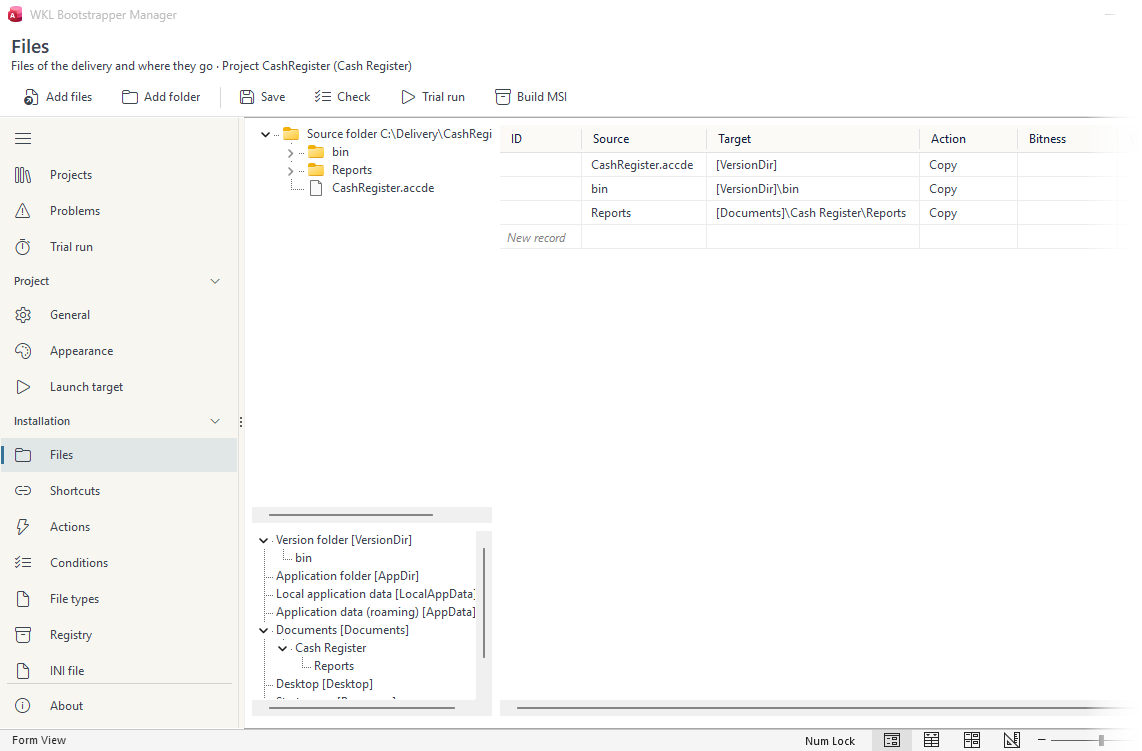
In Bootstrapper Manager, you give every file in the release a target: the ACCDE and the bin folder go to the version folder, the reports to the user’s Documents.
What happens at startup
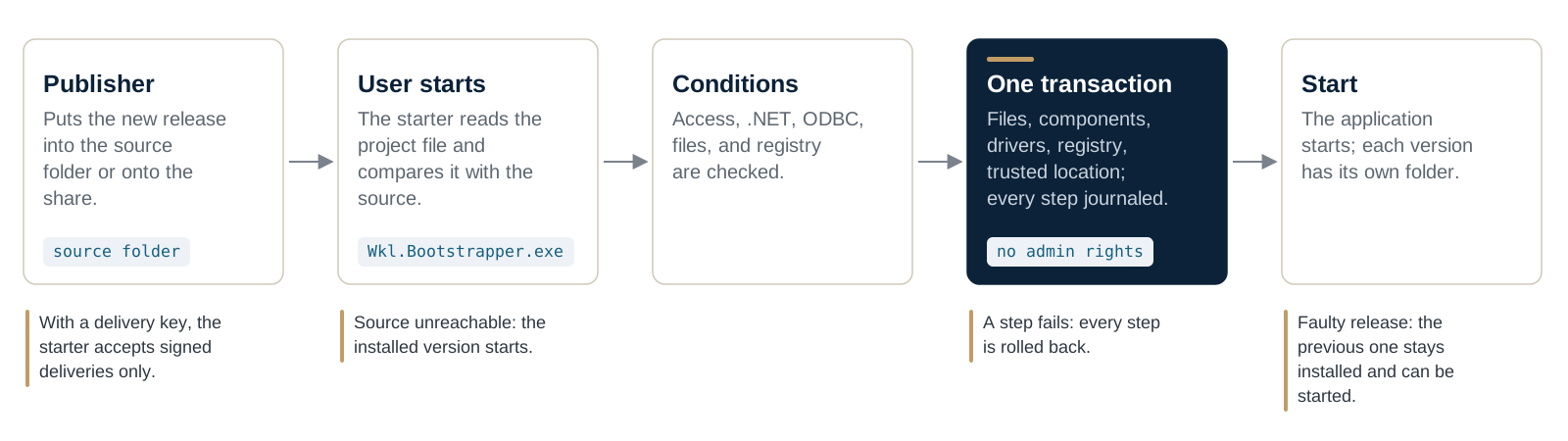
The starter compares the installed version with the source, checks the conditions, and sets up the new version in a single transaction – without admin rights.
Features
- A project file for files, registry values, shortcuts, and the launch target, maintained in Bootstrapper Manager without writing JSON
- Delivery key: the starter accepts only releases that carry your valid signature
- A signed Windows Installer package for Group Policy, Intune, or Configuration Manager
- Each version in a folder of its own in the user's profile; a running version is never overwritten
- Registers components to match the installed Office, ODBC drivers, data sources, the .NET runtime, and the trusted location
- Every step logged; if one fails or the PC shuts down, everything is rolled back—at the latest on the next start
Your users see your name
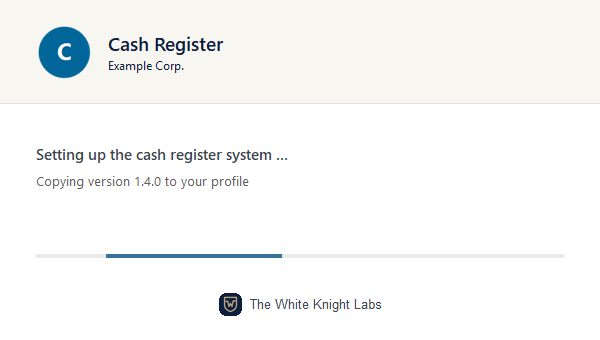
While a new version is being set up, the starter shows your application’s name, publisher, and logo and says what it’s doing – no setup wizard, no questions.
You choose the name, the texts, the window
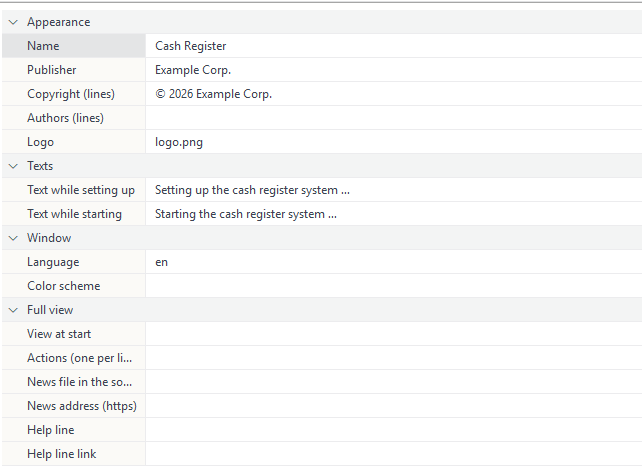
On the Appearance page, you set the name, publisher, logo, the texts shown while setting up and starting, the language, and the color scheme.
Registry values without admin rights
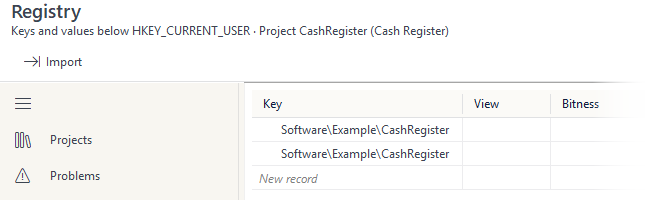
The starter writes registry values under HKEY_CURRENT_USER, the signed-in user’s part of the registry. That takes no admin rights.
More screens
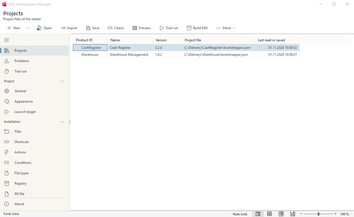
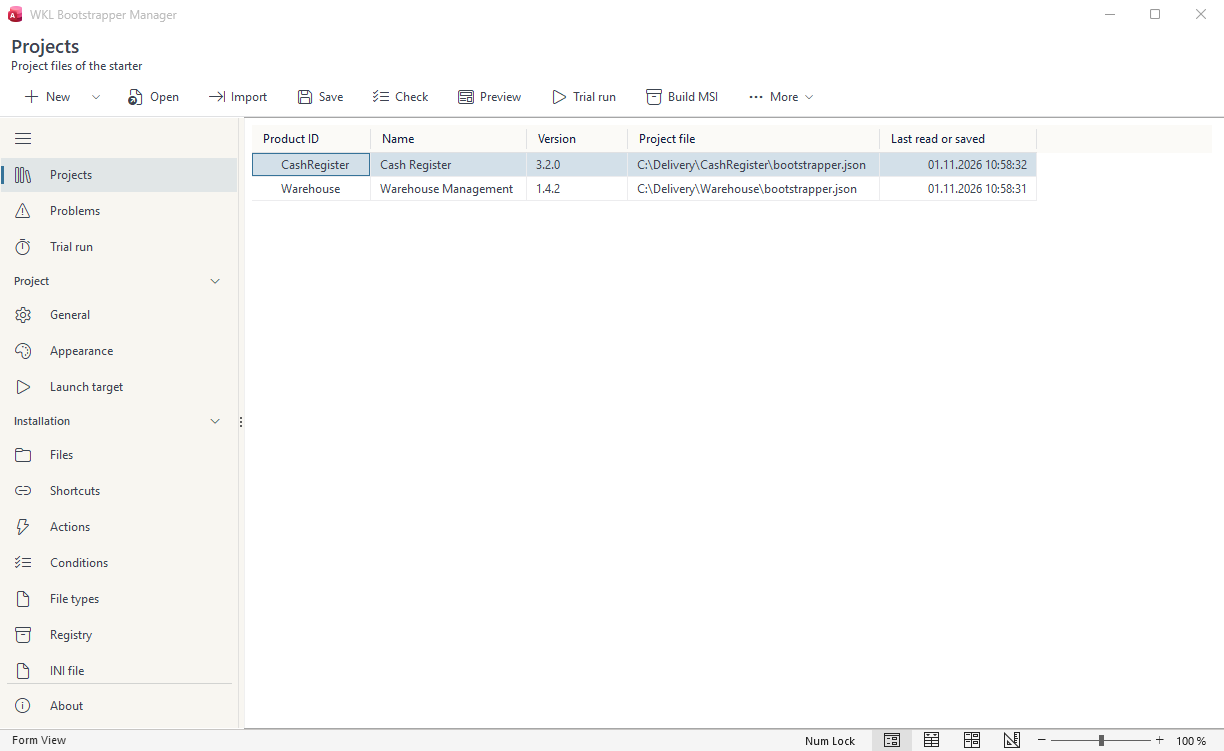
Projects: Bootstrapper Manager keeps several applications, each with its version and project file. 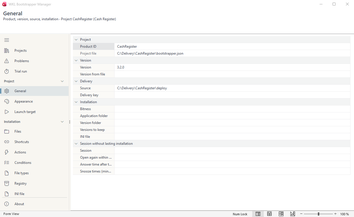
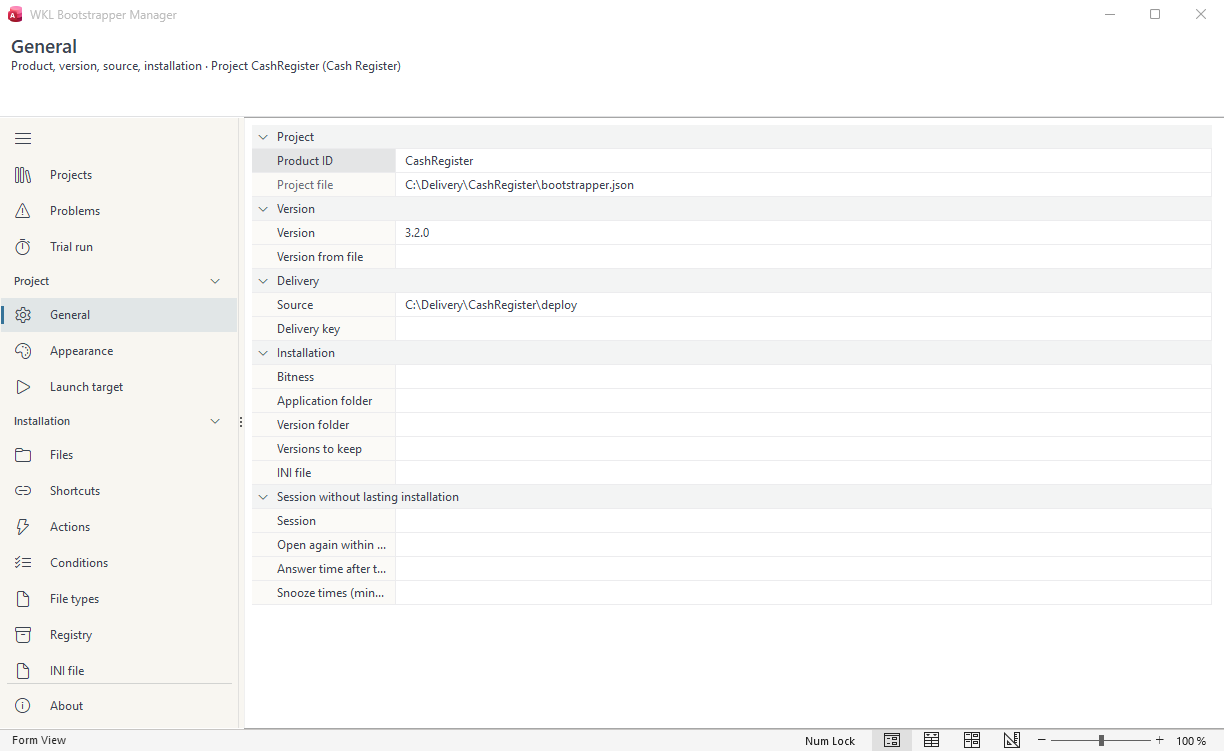
General: product, version, source, delivery key, and how many versions to keep. 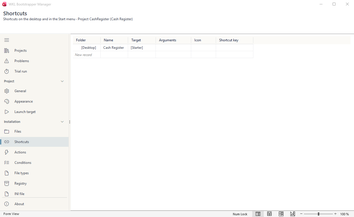
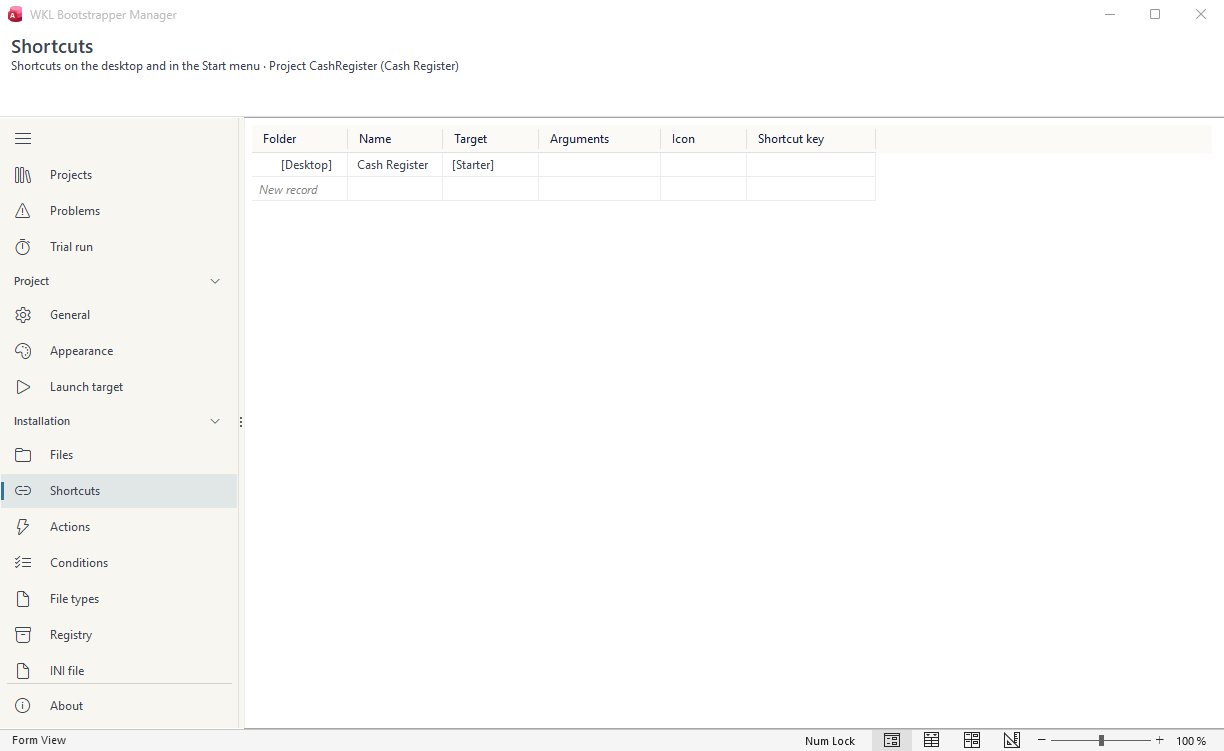
Shortcuts on the desktop and in the Start menu. 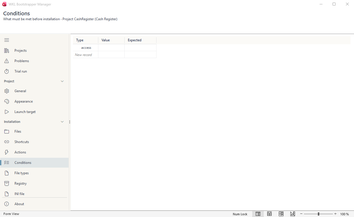
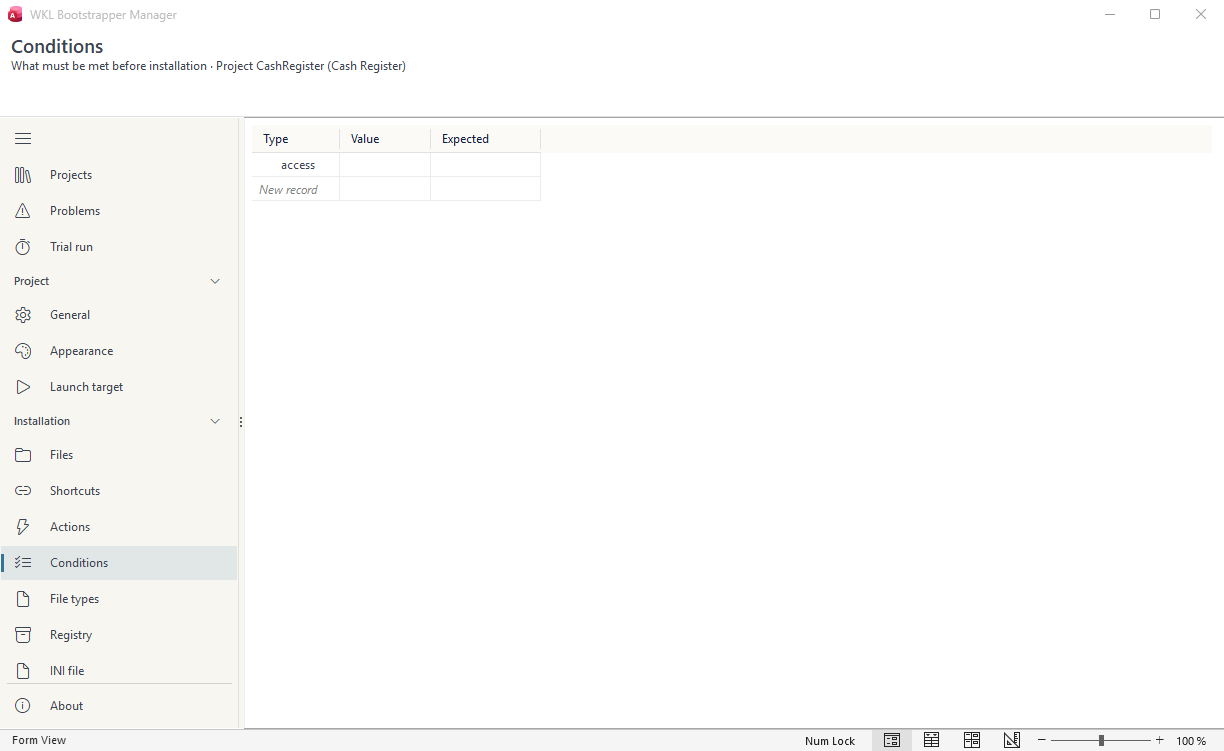
Conditions that must be met before installing, such as the Access version.
Technical details
- Requirements: Windows 11 with 32-bit or 64-bit Microsoft Access from Microsoft 365. Releases come from a folder or a network share. Anything installed machine-wide, such as the Access Runtime or system drivers, is set up once by IT, and the starter checks for it at every start. Bootstrapper Manager is installed with the Office SDK; building the MSI package also takes WiX 6 or later. Technical details and requirements
Frequently asked questions
How is this different from MSI or ClickOnce?
It combines what each one is missing: per-user installs without admin rights, like ClickOnce, plus a record of every file and rollback on failure, like Windows Installer—for Access applications, which ClickOnce doesn't publish. According to Microsoft, an MSI package needs administrative permissions; with the bootstrapper, IT deploys only the starter that way, once. Compare it with MSI, ClickOnce, and logon scripts
What rights does the starter need day to day?
Just the signed-in user's. It writes only to that user's folders and their part of the registry. A new MSI package is needed only when the starter or the project file changes.
What if a release is broken?
The previous version stays installed and starts from the settings window until the fixed release is ready. If an install step fails or the PC shuts down, the starter rolls everything back, by the next start at the latest.
How do I build the release it ships?
However you build it today—or with the Office SDK, which builds the ACCDE from text sources in Git. The bootstrapper can ship an Access application or any other program.
Setup, examples and reference, step by step: it's all in the documentation.
Open the documentation