
OData ODBC Driver
Connect Access to SQL Server over OData—no database password on the workstation
With the driver, your Access application talks to a data service instead of the database: no database password on the workstation, and sign-in and permissions in one place. Linked tables, forms, and reports stay as they are.

The challenge
Access isn't the problem—at least not always. If your linked tables still carry database passwords and every workstation connects straight to the database, your next security review will flag it. That's no reason to replace a proven application: modernization starts where it's needed, not necessarily with a rewrite.
The solution
The driver puts a data service between Access and the database. Tables are linked, not reprogrammed: the driver reads tables, columns, types, and keys from the service. It works with the Data Gateway data service as well as with other OData v4 services.
Switching over:
- Install the driver—one package for 32-bit and 64-bit, in the bitness of Office.
- Point the data source at the data service.
- Relink the tables in Access; forms, reports, and queries keep working.
- Users: datasheets and forms work as before, and people sign in with their Windows account or a personal key, not a database password.
- IT management: no database password is left on the workstation. The service checks who may read or change which table, in one place.
- Access developers: datasheets, forms, and single-table queries keep working; what's new is the connection strings.
- Operations: one installer for 32-bit and 64-bit, and workstations no longer need access to the database.
- Beyond Access: through the Data Gateway data service, Excel, Power BI, and your own programs reach the same tables, with the same permissions.
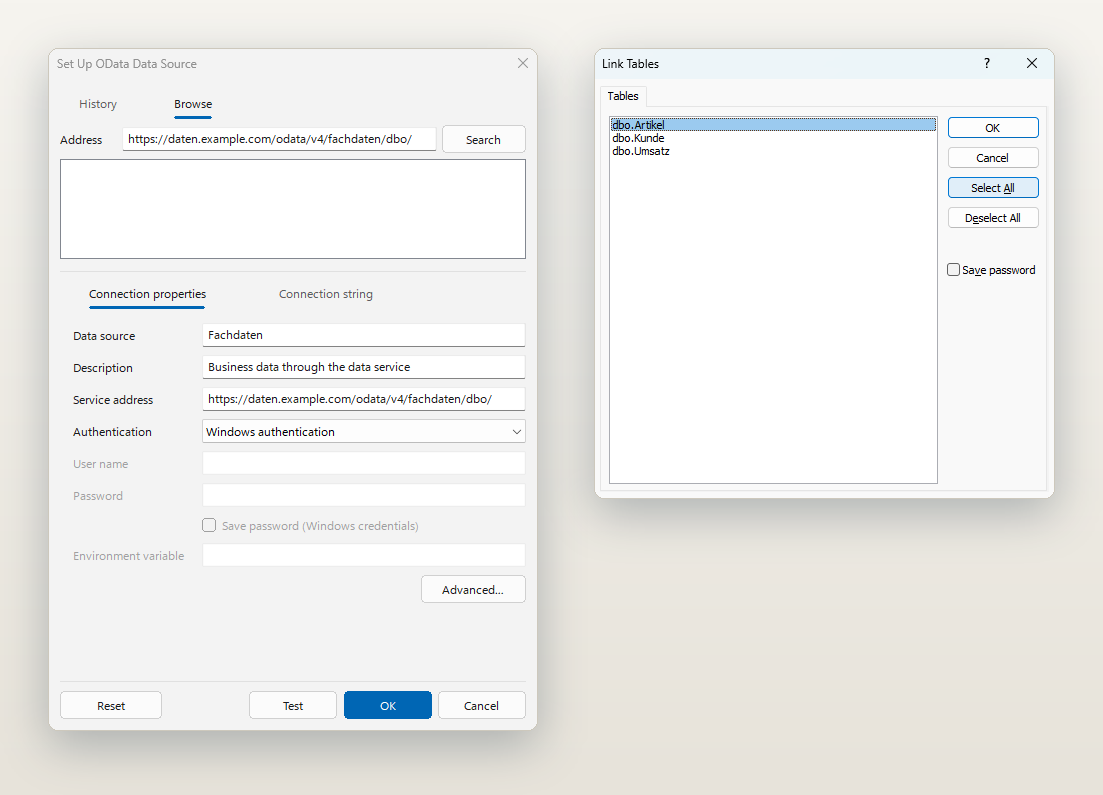
Set up one data source, then link tables as usual
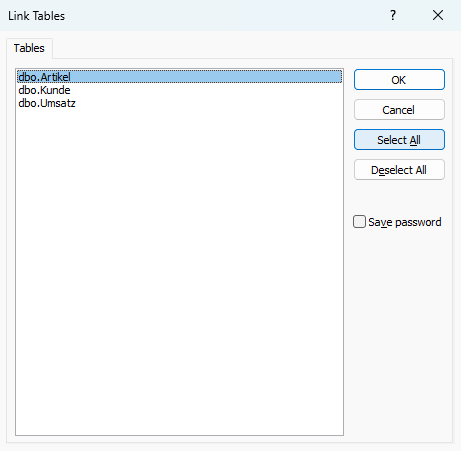
Instead of a server and a database password, you enter the service address. Access then links the tables through the dialog your users already know.
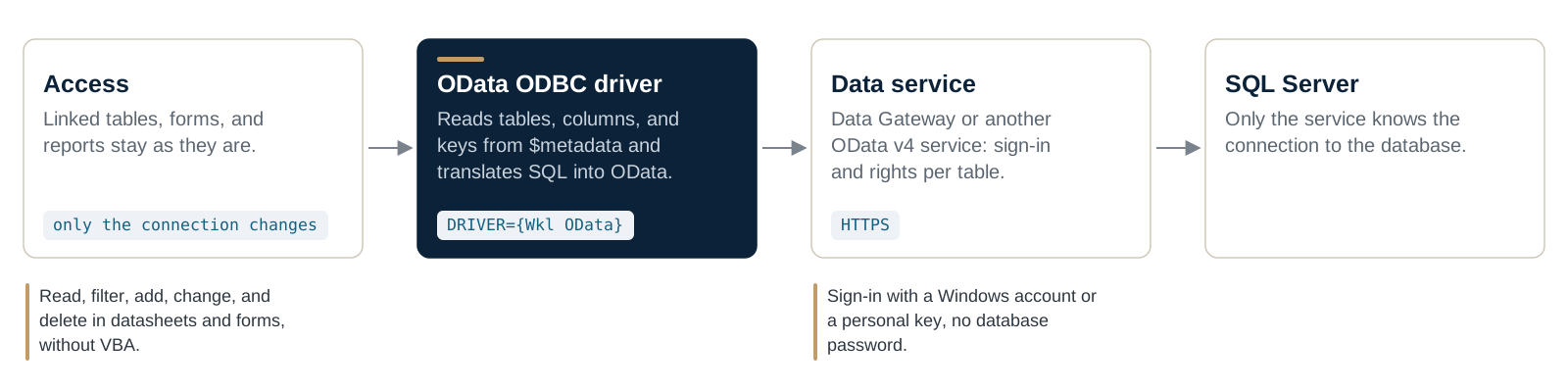
How a query travels
Access queries over ODBC, as it always has. The driver translates into OData and talks to the service over HTTPS; only the service reaches the database.
Features
- Link tables in Access and edit them in datasheet view, with the familiar write conflict
- Sign-in with a Windows account or a personal key, with a second factor wherever the service requires one
- Multi-table queries, checked against your rules and run by the service
BeginTrans,CommitTrans, andRollbackwhere the service offers transactions- One installer for 32-bit and 64-bit, matched to the bitness of Office
- ADO.NET with System.Data.Odbc, Server Explorer, and the TableAdapter Configuration Wizard in Visual Studio
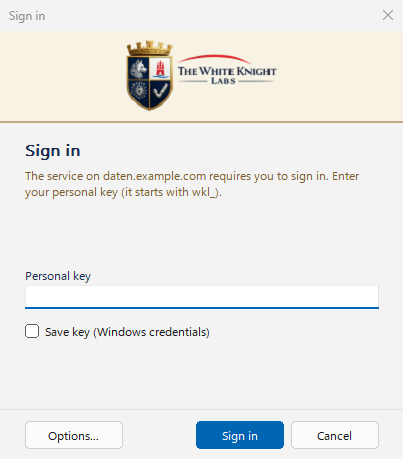
A personal key instead of a database password
When the service asks for a sign-in, the driver prompts for the personal key. Windows can keep it in Credential Manager.
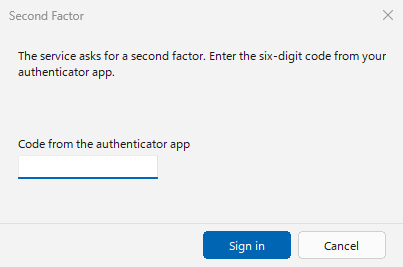
A second factor when the service requires one
If the service asks for a second factor, the user enters the six-digit code from their authenticator app.
Queries the driver doesn’t translate
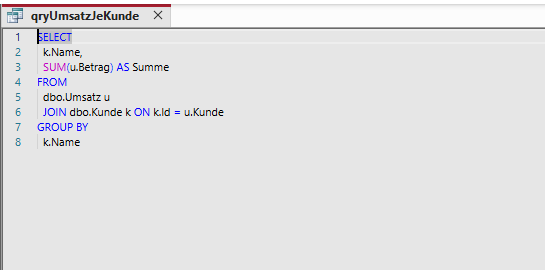
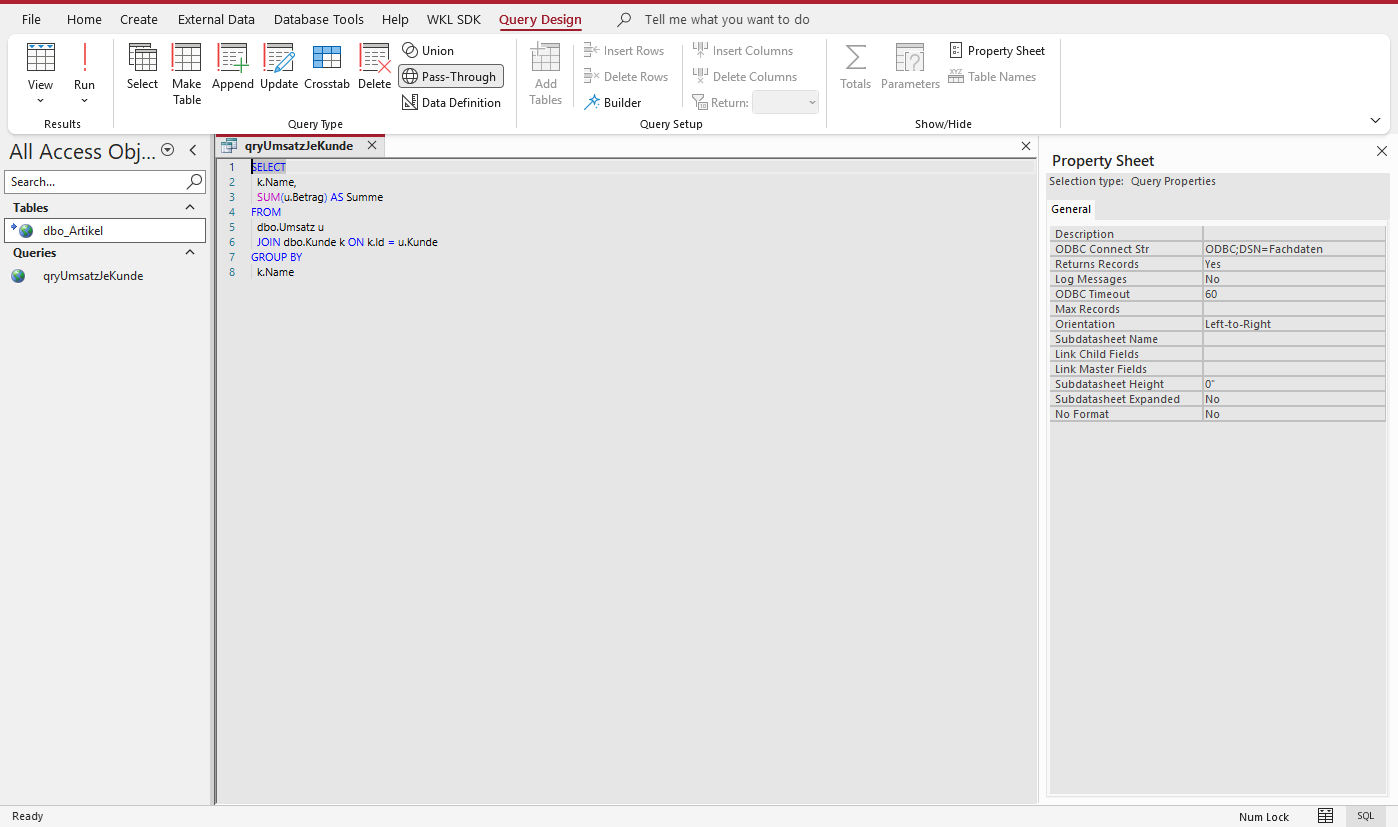
Joins and subqueries run as pass-through queries if the service accepts custom statements – with Data Gateway, as checked statements with rights per object.
More screens
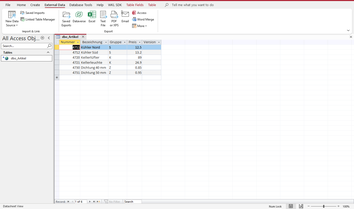
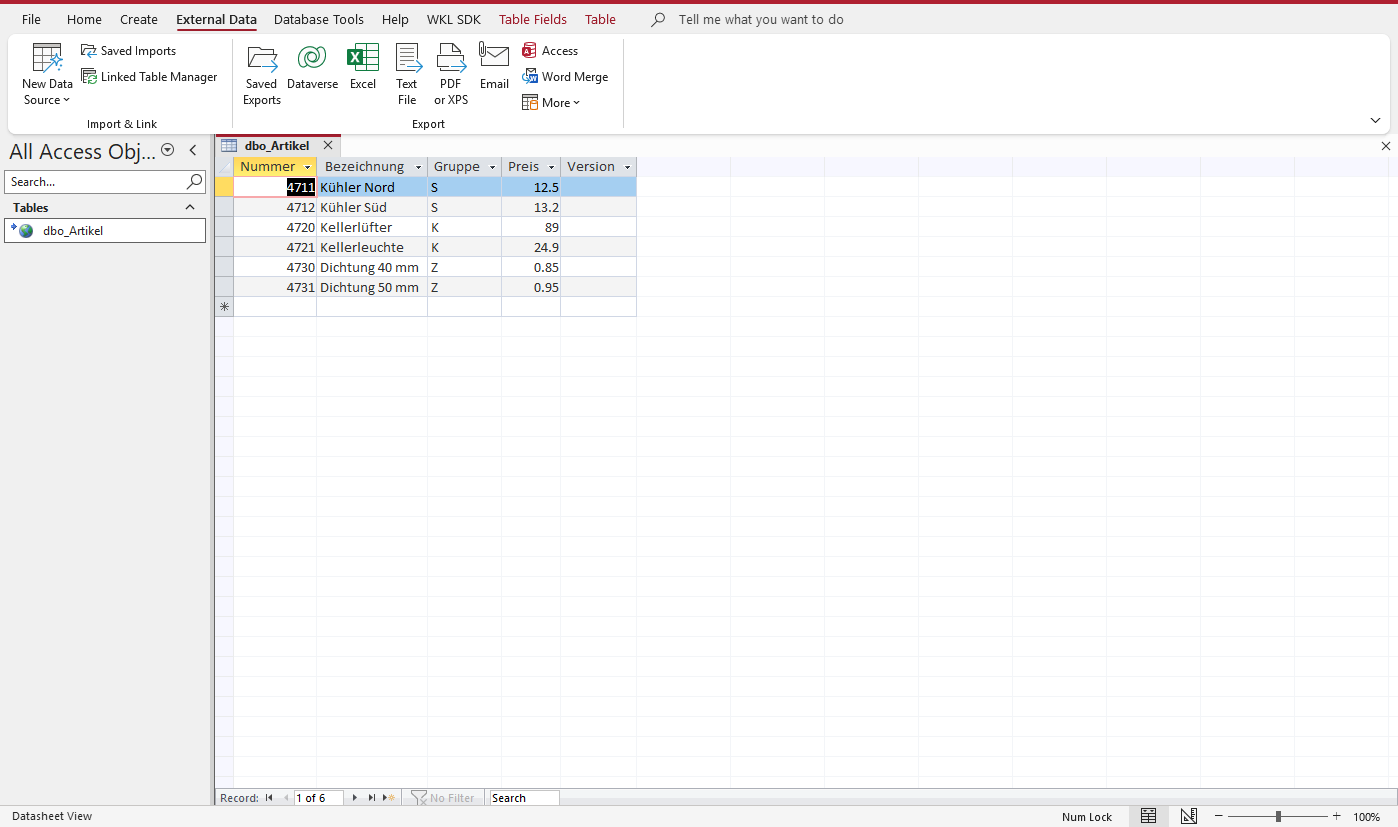
The linked table dbo_Artikel in a datasheet – the data comes from the service. 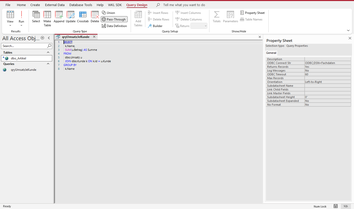
Design view of the pass-through query with its properties. 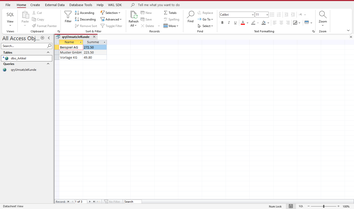
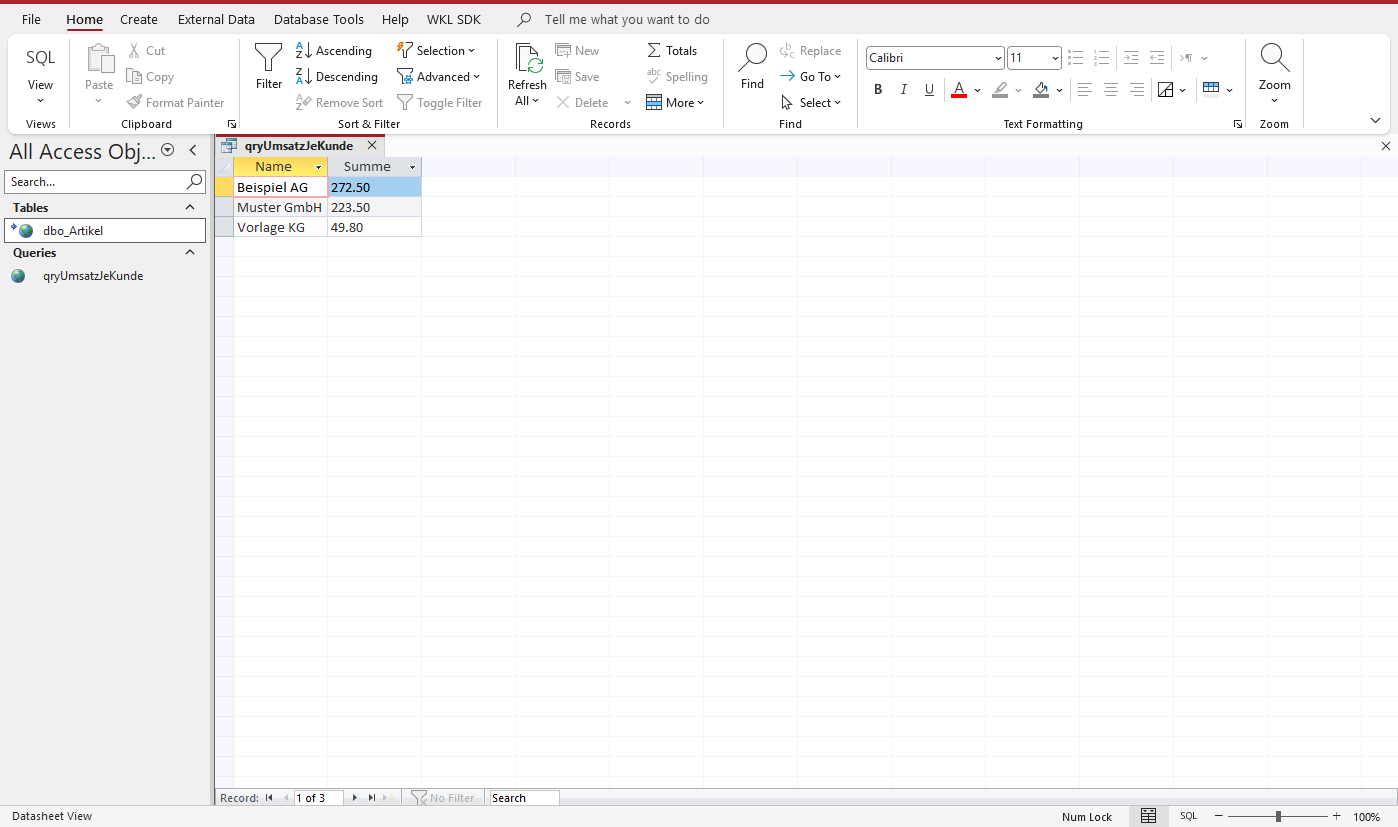
Result of the pass-through query: revenue per customer. 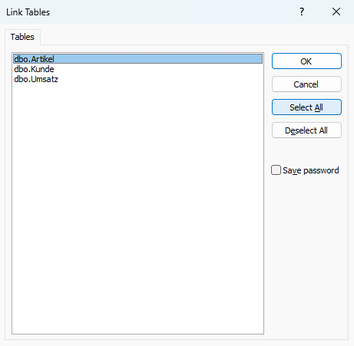
Link Tables: the tables the service offers.
Technical details
- Requirements: Windows 10 (version 1607 or later) and Windows 11, or Windows Server 2016 or later; Access 2010 or later or the Access Runtime, 32-bit or 64-bit. Released for the Data Gateway data service on SQL Server 2016 or later; other OData v4 services per the requirements for an OData service. Plus a certificate the workstations trust. Technical details and requirements
Frequently asked questions
What changes in our Access application?
The connection strings. Linked tables, forms, and reports stay. Where code fetches row by row or uses pass-through queries, the three-step check shows up front what to adjust.
Which services does the driver work with?
With Data Gateway, which it's released for, and with other OData v4 services. The service decides what works without pass-through, grouping, and transactions, so check it first against the requirements for an OData service.
What will our users notice?
Datasheets and forms work as before, and a write conflict appears just the way Access has always shown it. People sign in with their Windows account or a personal key, with a second factor where the service requires one.
We use ODBC Driver 18 directly against SQL Server today. How do we switch?
Datasheets, forms, and single-table queries keep working. For procedure calls, parameters, result sets, and data types, the reference lists each difference from ODBC Driver 18 along with how to handle it.
Setup, examples and reference, step by step: it's all in the documentation.
Open the documentation