
Forms Object Library · for Access application developers
TreeView, grid, and Gantt chart controls for Access forms
The controls users expect from business software. Set up the way Access works—in the property sheet, bound to tables, in ACCDE and the Runtime.
31 ActiveX controls and objects for Access forms: data views, editors, layout, navigation, status displays. Early binding with IntelliSense, events in the form module, fixed error numbers. Current release: 2.0.0.
- Table or query
- WKL control
- Form in ACCDE and the Runtime
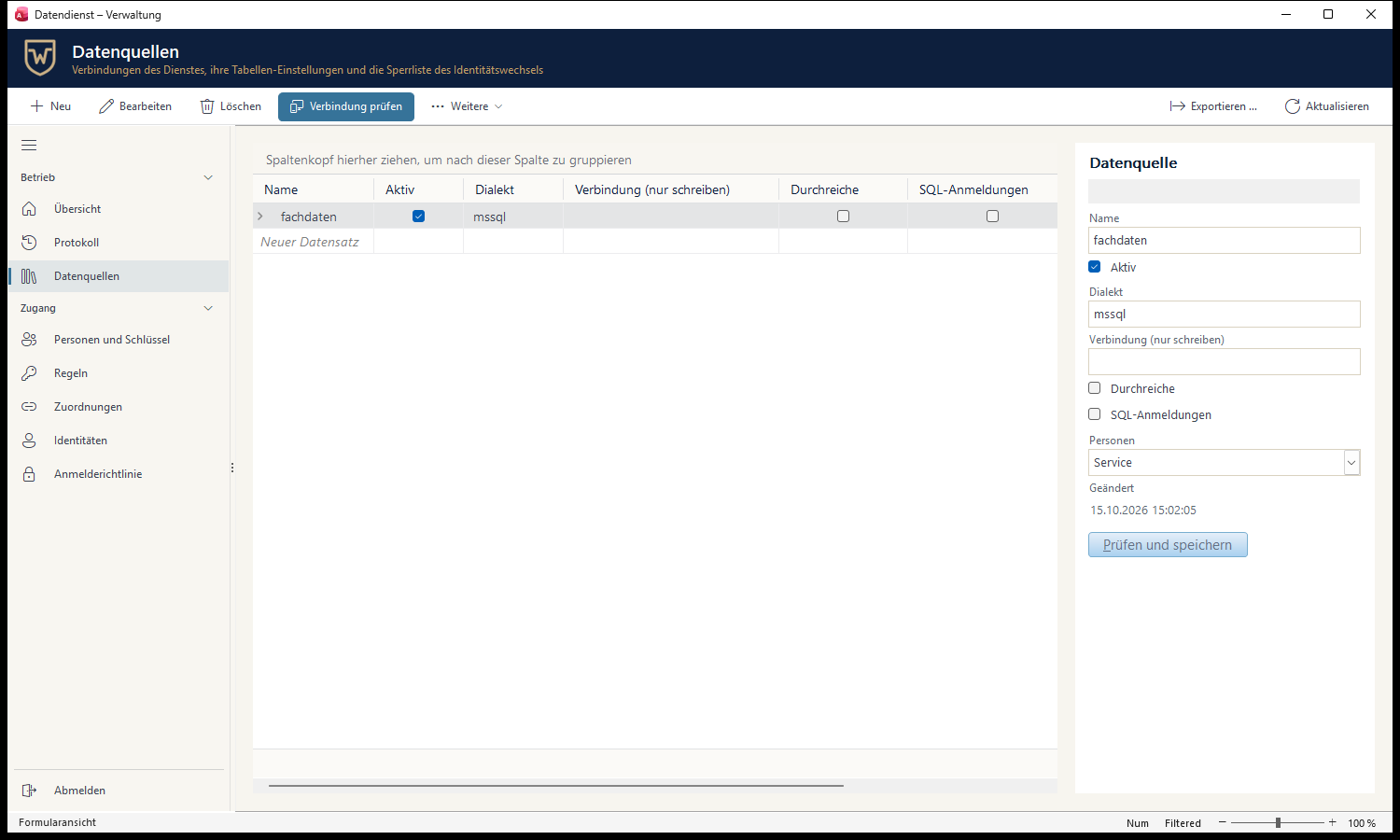
A tree shows a table with four properties: RecordSource, KeyField, ParentField, and TextField. It writes the user's changes back right away.
The situation
Access covers data entry. Beyond that, the toolbox runs out.
Text box, combo box, subform, tab control: the controls in Design view handle classic data entry. What users now expect from business software isn't among them.
- What users expect is missing. A tree bound to a table, a datasheet that groups, filters, and totals, a Gantt chart, a navigation bar, areas that follow the size of the window.
- Every workaround means more code. Nested subforms, continuous forms with conditional formatting, a TreeView that VBA fills node by node—rebuilt in every application.
- And it still doesn't look like Office. These workarounds look different from the rest of Office, and they behave differently, too.
Why not DevExpress or Telerik?
Strong suites—for .NET applications, not Access forms
Component suites like DevExpress WinForms and Telerik UI for WinForms solve exactly this problem for .NET applications, with Windows Forms controls. An Access form, though, only hosts ActiveX controls, so those suites can't be used there. The TreeView from the Microsoft Common Controls can—but it isn't bound: every node comes from VBA.
Forms Object Library brings comparable capabilities to Access as ActiveX controls that follow Access conventions: RecordSource, LinkMasterFields, Requery, the property sheet, events in the form module, ACCDE, and the Runtime.
With the Forms Object Library
One application, assembled from the controls
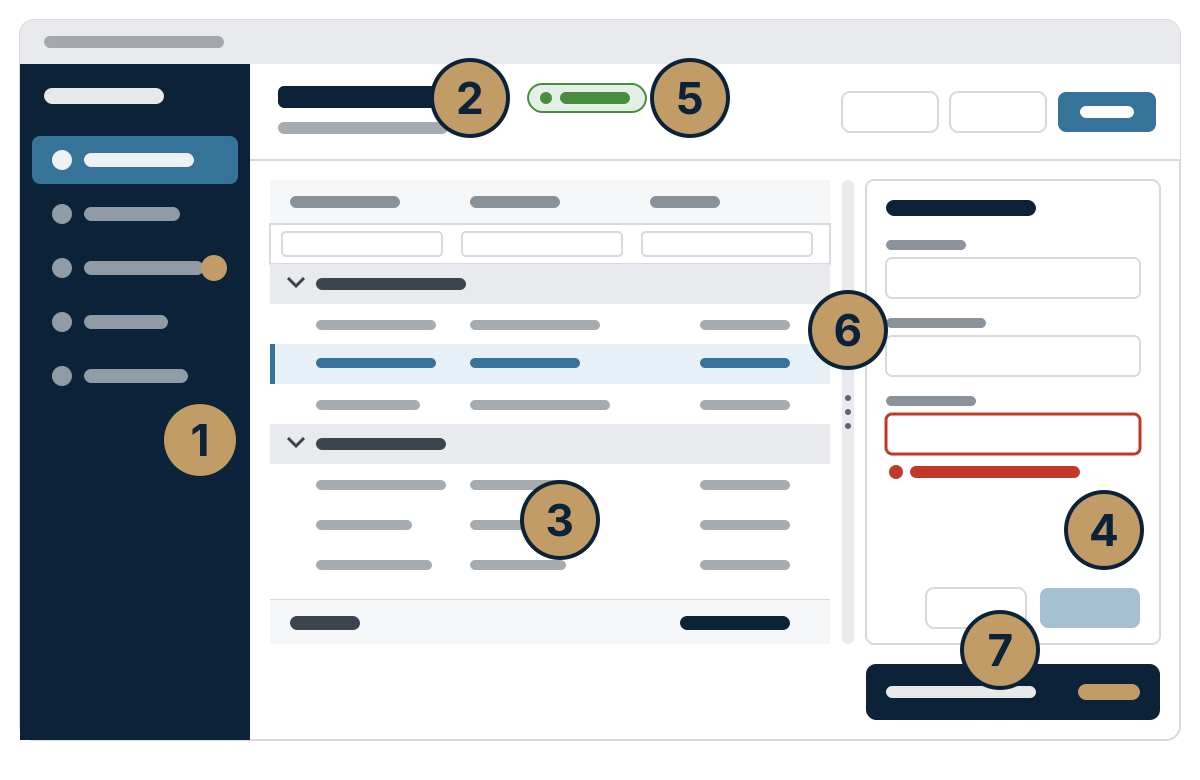
- WklNavBar—the application's navigation, from code or from a navigation table.
- WklActionBar—the header of a page: title, subtitle, status, and a row of commands.
- WklGrid—records with grouping, a filter row, and totals, plus a server mode for large tables.
- WklDrawer with WklValidator—an edit form beside the list; a wrong entry shows up next to its field, and the record isn't saved.
- WklStatusLabel—a status on one line, bound like a text box.
- WklDockLayout and WklSplitter—areas that follow the size of the window, and a bar the user drags.
- WklToast—a short notification after an action, with an action such as Undo.
Set up the way Access works
- Property sheet, designer, or VBA. Three ways to the same properties, which Access saves with the form.
- Events in the form module. You create the procedures from the designer's Events page or the lists in the code window.
- Bound like an Access control. The lists read a table, query, or SQL statement as their RecordSource and write the user's changes back right away.
- Early binding and fixed error numbers. IntelliSense in the VBA editor, and errors you can handle by number.
- ACCDB, ACCDE, and the Access Runtime. The same controls in development and in the application you ship, in 32-bit and 64-bit Access.
- No license check. No license key, no check in Design view or at run time; the terms of your contract apply.
The right control for your task
31 controls and objects in seven groups. Each group leads to the overview and reference of its controls and, where they exist, their tutorials.
- Data viewsGrid, tree, tree list, Gantt chart, property grid, chart, world map.
- Data editorsToggle switch, token box, button edit, spin edit, validation before saving.
- LayoutDock layout, splitter, drawer.
- Navigation and commandsNavigation bar, action bar, button, ribbon, navigation pane.
- Status and feedbackStatus label, badge, toast, gauge, KPI card.
- MediaQR codes and barcodes, images—in reports, too.
- Application and connectionsStartup properties, linked tables per profile, scheduled tasks, application texts.
Status and limits
Is the Forms Object Library a fit for your application?
Released
It's a fit if your application runs on Windows 10 or 11 in Microsoft Access from Microsoft 365 or the Access Runtime, 32-bit or 64-bit. Each PC needs the .NET 10 Desktop Runtime in the bitness of Office; registration is per Windows user, without admin rights. Check these points first:
- Trusted locations only. The controls register as safe for scripting, even though some members write, open, or read files.
- Not everywhere on a form. They don't work in the detail section of a continuous form, and a subform is drawn on top of them; each control's page names the workaround.
- Reports: the lists show a notice instead of data there; barcode and image are made for reports.
- Changes are written back only where Access can: AutoSave needs an updatable record source with a unique key.
- High-DPI settings aren't supported; drag and drop works only within the same control.
Start here
- Install the released packagePrerequisites, bitness, registration for your Windows user.
- Bind a tree to a tableOne control on its own, from the table to an editable tree.
- Move an application to release 2.0For applications built against release 1.x.
- Deploy to users' PCsWhat gets registered on each PC—by hand or with Bootstrapper.
Want to know what the Forms Object Library includes and what your environment needs? The product page covers features, requirements, and limits.
See the product page